Ticket Close Schedule Command
✨ Overview
With /ticket closeschedule, you can:
- ⏰ Schedule a ticket to be automatically closed after a specified duration.
🧾 Command Details
- Type: Slash Command
- Permission Required: Staff
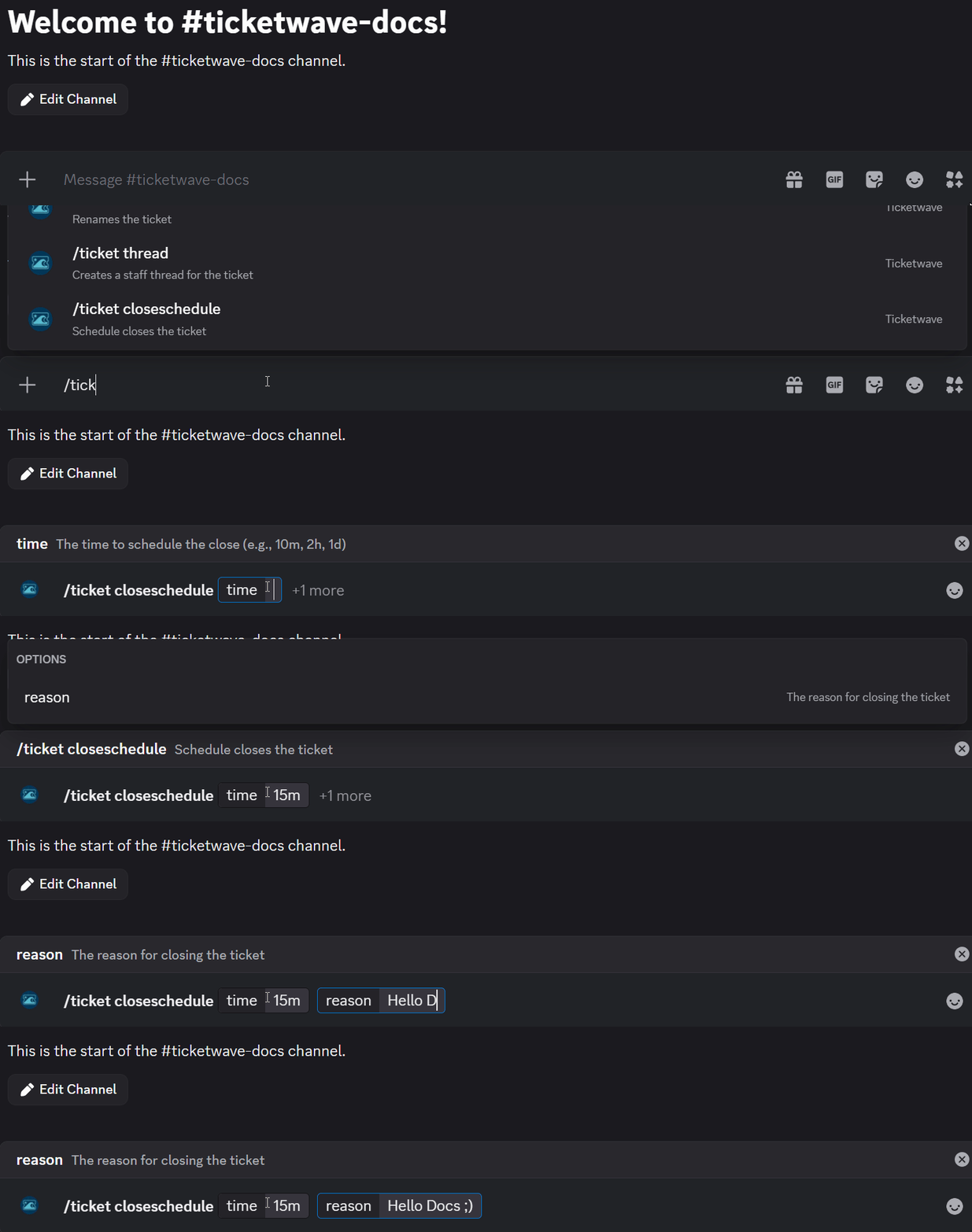
- Usage:
/ticket closeschedule
Parameters
| Parameter | Type | Required | Description |
|---|---|---|---|
time | Text | Required | The duration after which the ticket will be automatically closed (e.g. 10m, 2h, 1d) |
reason | Text | Optional | The reason for closing the ticket |
Time Formats
| Format | Example | Meaning |
|---|---|---|
| Minutes | 30m | 30 minutes from now |
| Hours | 2h | 2 hours from now |
| Days | 1d | 1 day from now |
| Combined | 1d 12h | 1 day and 12 hours |
info
The time parameter accepts durations in the format of a number followed by a unit (s for seconds, m for minutes, h for hours, d for days). For example, "10m" would schedule the ticket to be closed after 10 minutes.
💡 When Should You Use This?
Use /ticket closeschedule when:
- You want to schedule a ticket to be automatically closed after a certain period of time, such as when waiting for a user response or when a ticket has been inactive for a while.
📌 Example
/ticket closeschedule
➡️ Szenario 1: You are a support team member and your user respond that there is a issue in your system. You reject the issue becuase it is not a bug, it's a configuration issue. You explain that and want to give the user a specific time until the ticket will be closed automatically in case they have further questions or need more help.

📝 Notes
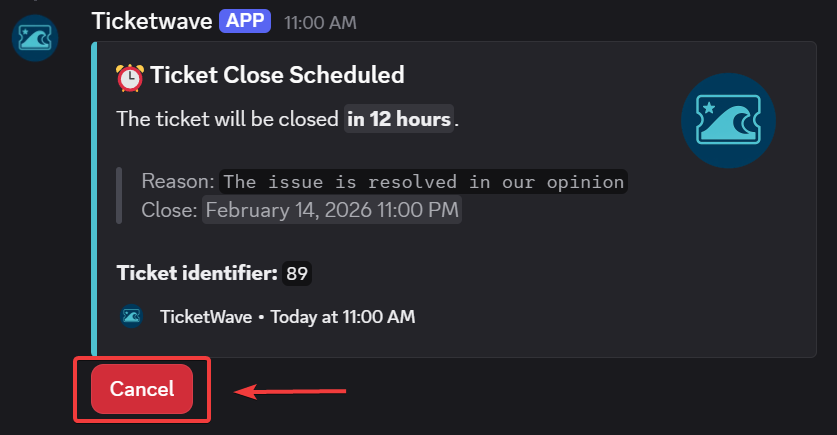
- ❌ You can cancel a scheduled close by click on the "Cancel" button in the schedule close message.