Ticket Priority Command
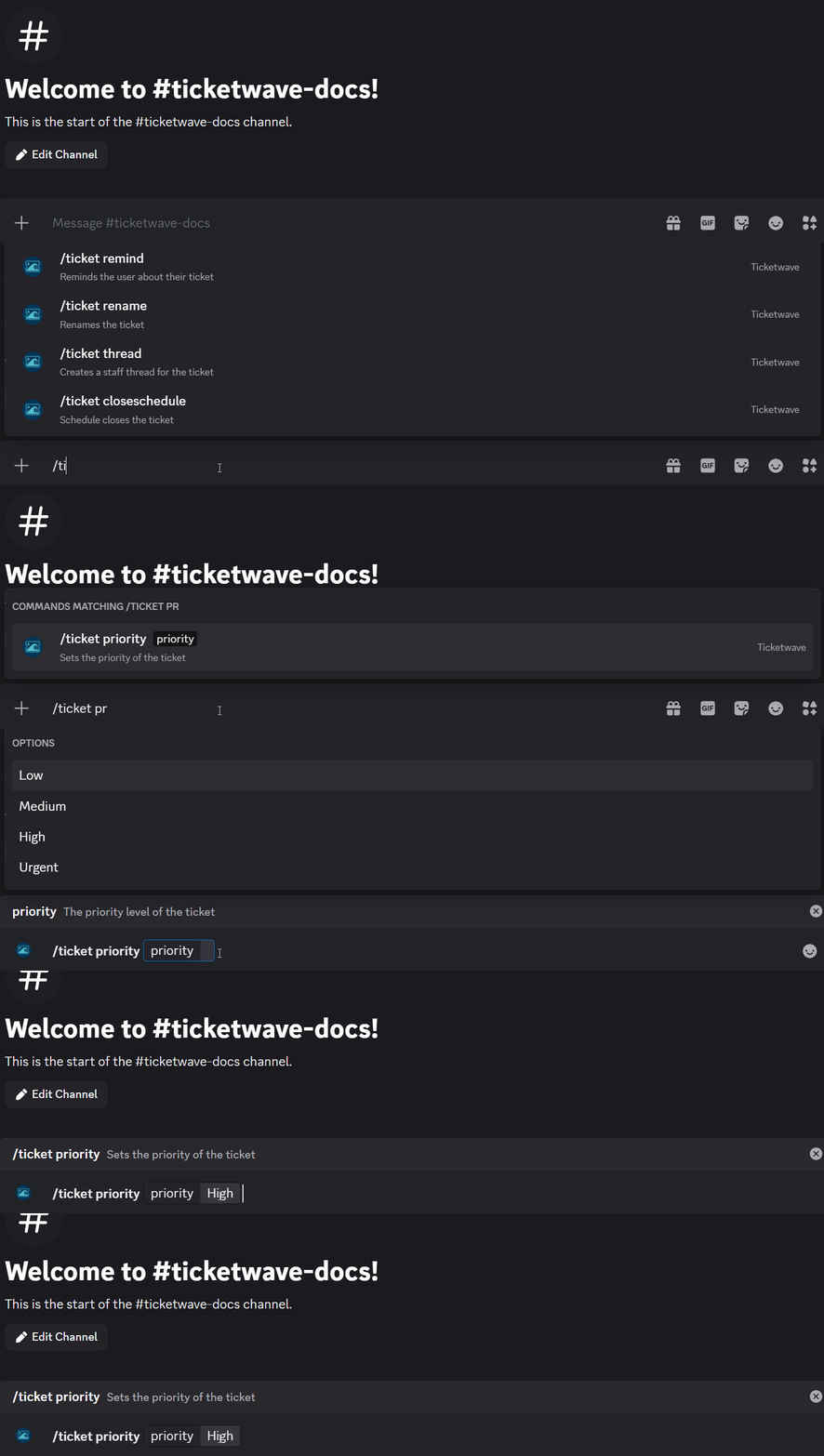
✨ Overview
With /ticket priority, you can:
- 🟢 Set or change the priority level of an existing ticket.
🧾 Command Details
- Type: Slash Command
- Permission Required: Staff
- Usage:
/ticket priority
Parameters
| Parameter | Type | Required | Description |
|---|---|---|---|
priority | Choice | Yes | Priority level |
Priority Levels
| Level | Symbol | When to Use |
|---|---|---|
| Low | 🟢 | Non-urgent requests, general questions |
| Medium | 🟡 | Standard support requests, typical issues |
| High | 🟠 | Important issues, time-sensitive requests |
| Urgent | 🔴 | Critical problems, security issues, system down |
💡 When Should You Use This?
Use /ticket priority when:
- 🟢 You want to set or change the priority level of an existing ticket to indicate its urgency.
Some common scenarios
- Ticket affects multiple users (🔴 high priority)
- User reports a security issue (🔴 urgent)
- Service outage reported (🔴 urgent)
- Simple question or feature request (🟢 low priority)
- Typical support request (🟡 medium priority)
- Customer status warrants priority like VIP, "Priority Support" and more.. (🔵 Any offered priority)
📌 Example
/ticket priority
➡️ Szenario 1: Your ticket name pattern is t-{user}-{number} (See placeholders).
A user reports that they is a big security issue in your system. He can easily exploit all user data because of this issue. You want to set the priority of the ticket to "Urgent" to indicate that it needs immediate attention and should be addressed as soon as possible.

The channel name will also be updated:

to

📝 Notes
- ℹ️ Try to set the priority level thoughtfully to ensure tickets are addressed in an appropriate order based on their urgency.
- ⚠️ You only can change the channel name two times in 10 minutes. This restriction comes from Discord and is not related to TicketWave.