
Overview
How TicketWave's OAuth ticket steps verify Steam, CFX, GitHub, Roblox, Twitch, Battle.net and Epic Games accounts.
Authentication Steps
An authentication step asks the member to sign in with an external account. TicketWave never asks for a password — the member is sent to the provider's own login page and only the verified account name and ID come back.
Why This Beats Asking in Chat
Asking "What is your Steam name?" gives you a string a member typed. An authentication step gives you an account the member proved they own.
| Asking in chat | Authentication step |
|---|---|
| Typos and wrong IDs | Exact account ID from the provider |
| Impersonation is trivial | The member must actually sign in |
| Staff has to copy/paste and look it up | Name and ID land in the ticket automatically |
| Costs a few messages | Costs one click |
For gaming and development communities this is the single biggest time saver in TicketWave — your staff starts every ticket already knowing who they are talking to.
Supported Services
| Service | Step Type | Guide |
|---|---|---|
| CFX / FiveM | CFX Authentication | Click here |
| Steam | Steam Authentication | Click here |
| GitHub | GitHub Authentication | Click here |
| Roblox | Roblox Authentication | Click here |
| Twitch | Twitch Authentication | Click here |
| Battle.net | Battle.net Authentication | Click here |
| Epic Games | Epic Games Authentication | Click here |
Every authentication step type is a premium feature. Everything is already connected on our side — you do not have to register a developer application, create API keys or host anything.
How It Works
The step appears in the ticket with a Login button and the service logo.
The member clicks Login. The button is a link that carries a one-time token.
The provider asks for consent. The member signs in on the provider's own website — Steam, GitHub, Twitch and so on. TicketWave never sees the credentials.
The provider sends the member back. TicketWave verifies the response, reads the account name and ID and stores them as the answer to the step.
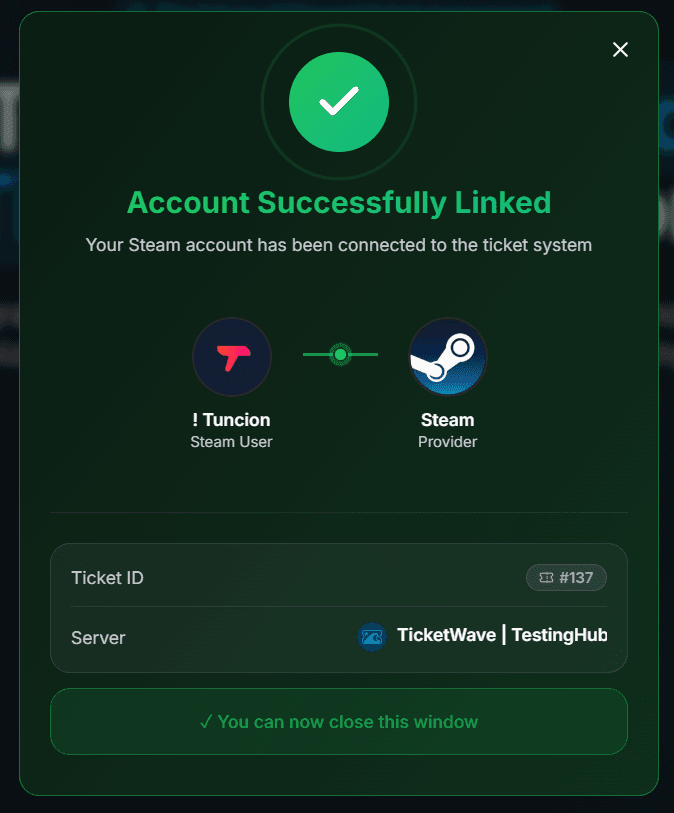
A confirmation page opens on the TicketWave website: "Account Successfully Linked", with the ticket ID, the server and the linked account.
The ticket continues with the next step — or unlocks if this was the last one.
The One-Time Token
Every Login button contains a token that is valid for 10 minutes.
That is intentional: the link is posted in a channel, and a link that stays valid forever is a link that can be reused. After 10 minutes the token is thrown away.
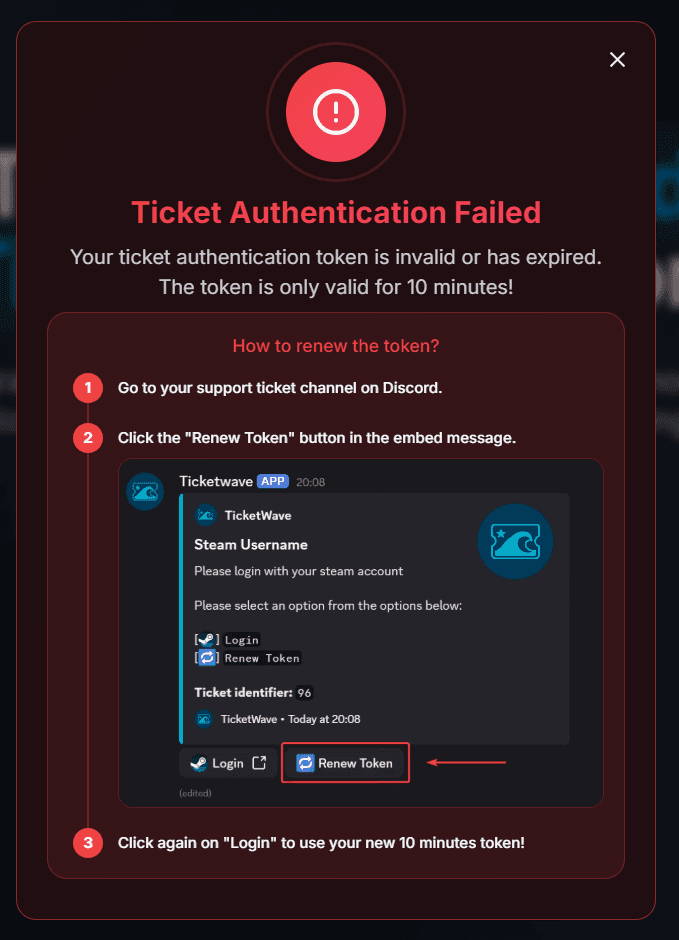
If a member takes too long, they see this page instead:
Renewing the Token
Every authentication step has a 🔁 Renew Token button next to the Login button.
Go back to the ticket channel on Discord.
Click 🔁 Renew Token in the step message.
Click Login again — the button now carries a fresh 10 minute token.
Renewing does not lose anything. It simply rebuilds the step message with a new token.
What TicketWave Stores
For every successful authentication exactly two values are stored with the ticket:
- the account ID at the provider
- the display name / username at the provider
That is it. No password, no email, no access token is kept after the exchange. The access token is used once to read the public profile and is then discarded together with the request.
The answer shows up in the ticket summary like this:
> Steam Verification: 🎮 `PlayerOne` (`76561198000000000`)
Add an Authentication Step
Open your server dashboard → Settings → Ticket Steps → Configure.
Click Add Step.
Give it a Step Title (e.g. Verify your Steam account) and a short Step Description.
Pick the service under Step Type.
Decide whether the step is Required — an optional step gets an extra ⏭️ Skip button.
Optionally restrict the step to a category or subcategory so only the tickets that need it ask for it.
Click Create Step and open a test ticket.
Authentication steps do not use step options. The Login and Renew Token buttons are generated by TicketWave — you only configure the title, description and restrictions.
Troubleshooting
The step is not shown at all.
Authentication steps require premium. Without an active premium the step is skipped. Check the Premium page of your server dashboard.
"Your ticket authentication token is invalid or has expired."
The 10 minute window is over. Use 🔁 Renew Token in the ticket and click Login again.
Somebody else clicked the button.
Only the ticket owner can answer a step. Everyone else gets an error message and nothing is stored.
Nothing happens after signing in.
The ticket must still be open and the step must still be unanswered when the member comes back. If the ticket was closed in the meantime, the answer cannot be stored — open a new ticket.
Next Steps
Pick the service you want to set up:
How is this guide?