
Overview
Learn how TicketWave's ticket step system collects the information you need before a ticket even reaches your staff.
Ticket Steps Overview
Ticket steps are small questions or verifications a member has to complete right after opening a ticket and before they can write a single message.
Instead of your staff asking "What is your username?", "Which platform?", "Did you read the rules?" over and over again, TicketWave asks for it automatically and writes the answers into the ticket.
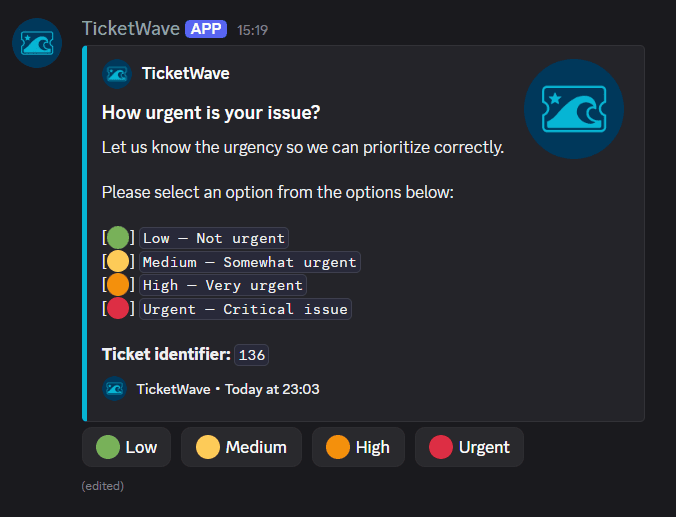
Why Ticket Steps Matter
A ticket that arrives with the right information already attached is a ticket your staff can answer instead of investigate.
- Less back and forth — the answers are collected before staff reads the ticket
- Consistent data — every ticket of the same category contains the same fields
- Verified identities — authentication steps prove that an account really belongs to the member (see Authentication Steps)
- Fewer junk tickets — an option can close the ticket immediately, e.g. "I did not read the rules"
The Ticket Creation Flow
When a member opens a ticket, TicketWave always walks through the same order:
Category — only if the category system is active
Subcategory — only if the selected category has subcategories
Steps — one after another, sorted by their position, until every step is answered
Ticket unlocked — the ticket info embed appears and the member can finally write
While steps are still open, the member can see the ticket channel but cannot send messages. Sending permission is granted the moment the last step is answered or skipped.
Every step replaces the previous message in the ticket channel, so the channel stays clean — there is never a wall of old step embeds.
Step Types
TicketWave currently supports eight step types:
| Type | What the member does | Premium |
|---|---|---|
| Button Selection | Picks one of your custom button options | ❌ Free |
| CFX Authentication | Signs in with their CFX / FiveM forum account | 👑 |
| Steam Authentication | Signs in with Steam | 👑 |
| GitHub Authentication | Signs in with GitHub | 👑 |
| Roblox Authentication | Signs in with Roblox | 👑 |
| Twitch Authentication | Signs in with Twitch | 👑 |
| Battle.net Authentication | Signs in with Battle.net | 👑 |
| Epic Games Authentication | Signs in with Epic Games | 👑 |
Button steps are explained in Button Steps. Every authentication service has its own page under Authentication.
Where to Configure Steps
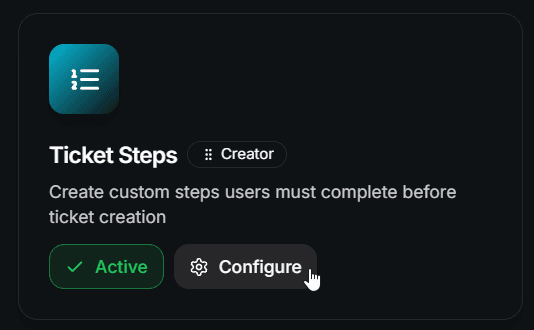
All steps live in the Ticket Steps module in your server dashboard.
Open https://ticketwave.dev and select your server.
Go to Settings in the side navigation.
Search for Ticket Steps or filter by the Ticket Structure category.
Click Configure to open the step list.
Step Settings
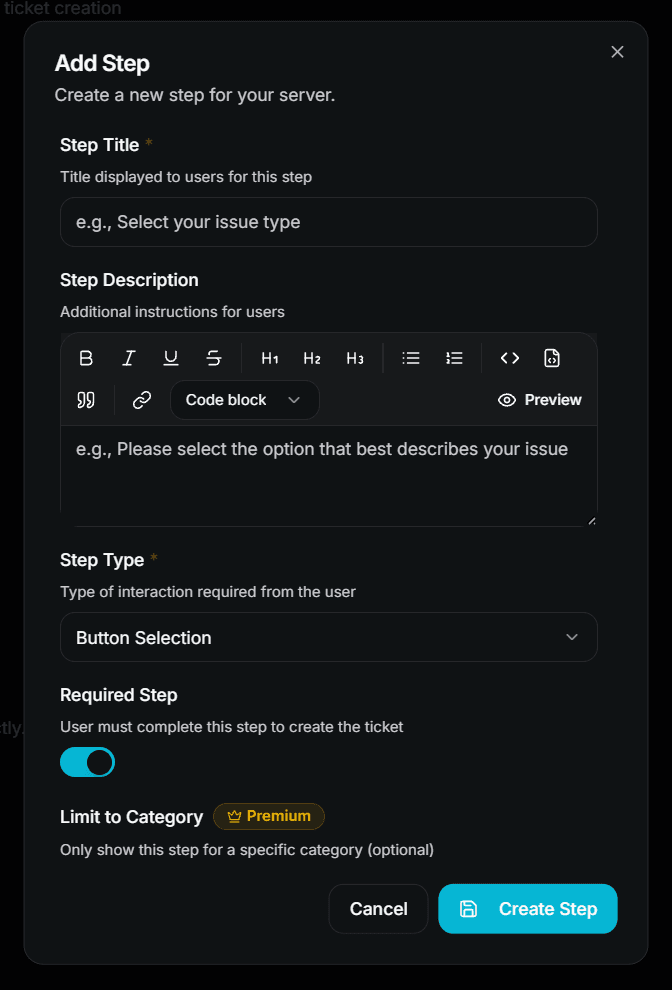
Every step — no matter which type — has the same base settings:
| Setting | Description | Premium |
|---|---|---|
| Step Title | The embed title the member sees. Required. | ❌ Free |
| Step Description | Extra instructions shown above the options. Supports Discord markdown. | ❌ Free |
| Step Type | One of the eight types listed above. | ❌ Free (auth types 👑) |
| Required Step | If disabled, a ⏭️ Skip button is added to the step. | ❌ Free |
| Limit to Category | Only show this step when the ticket belongs to a specific category. | 👑 |
| Limit to Subcategory | Only show this step for a specific subcategory. | 👑 |
Limit to Subcategory only becomes selectable after you picked a Limit to Category.
Order of Steps
The step list supports drag & drop reordering. The order in the list is exactly the order your members will see.
Use Save Sequence after reordering — the new order is not stored until you do.
The order matters for the free plan: only the first step is used. If you reorder your steps on the free plan, a different step becomes the active one.
Limits
| Item | Free | Premium |
|---|---|---|
| Steps per server | 1 | Unlimited |
| Options per button step | 3 | Unlimited |
| Optional (skippable) steps | ✅ | ✅ |
| Category / subcategory restriction | ❌ | ✅ |
| Auto-close on option | ❌ | ✅ |
| Custom (server) emojis on options | ❌ | ✅ |
| Authentication step types | ❌ | ✅ |
Steps beyond your limit are not deleted — they are simply skipped while the limit applies. As soon as premium is active, they show up again.
Good to Know
- Only the ticket owner can answer a step. Everyone else gets an error message.
- A button step without options is skipped automatically, because Discord does not allow an empty button row.
- A step that is already answered cannot be answered twice.
- Every answer is written to the ticket log (
ticket_answer_step) and is shown in the ticket summary embed after all steps are done.
Next Steps
- Button Steps (Build your own question with custom buttons)
- Authentication Steps (Verify Steam, CFX, GitHub, Roblox, Twitch, Battle.net and Epic Games accounts)
- Ticket Categories & Subcategories (Structure your tickets before the steps start)
How is this guide?