
Roblox
Verify a member's Roblox account inside a ticket with the Roblox Authentication step.
Roblox Authentication Step
The Roblox Authentication step verifies a member's Roblox account through the official Roblox OAuth flow — no "put the code in your profile description" workarounds needed.
This step type is a premium feature. TicketWave handles the Roblox application, you only pick the step type.
Who Should Use This
- Roblox game communities that need the correct player for a ban appeal or a lost item
- Group support servers that hand out roles based on the Roblox account
- Developers selling models, scripts or game passes
- Any server that struggles with impersonation of well known Roblox usernames
What Gets Stored
| Field | Example | Description |
|---|---|---|
roblox_id | 1234567890 | The permanent Roblox user ID |
roblox_username | PlayerOne | The Roblox username at the time of verification |
> Roblox Verification: `PlayerOne` (`1234567890`)Roblox usernames can be changed with Robux. The user ID stays the same forever — always store and search by ID.
How the Member Experiences It
The step shows a Login button with the Roblox logo.
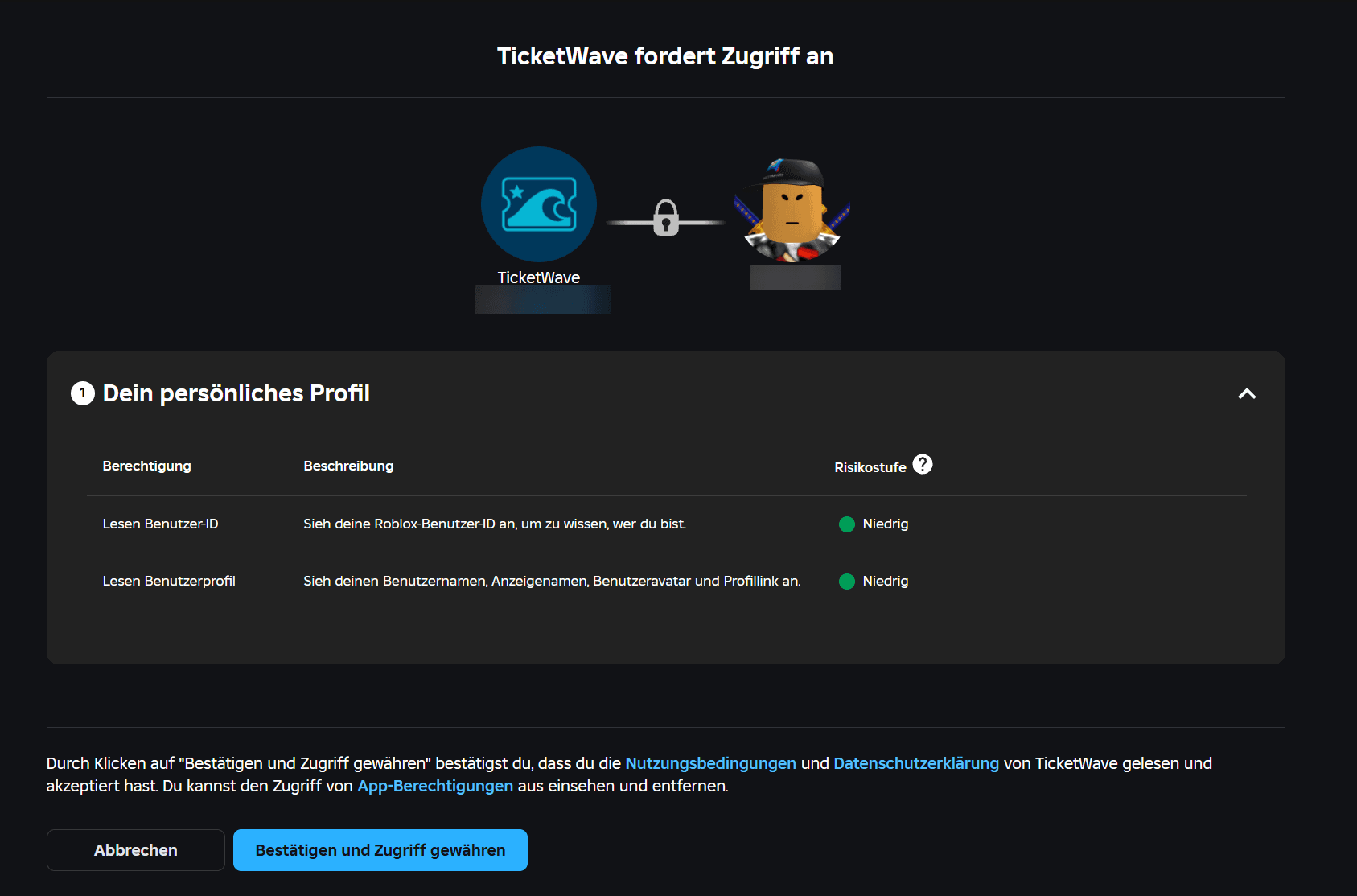
The official Roblox authorization page opens and asks to share the basic profile information (openid profile) with TicketWave.
After confirming, Roblox sends the member back and TicketWave reads the username, ID and avatar headshot.
The confirmation page appears and the ticket moves on.
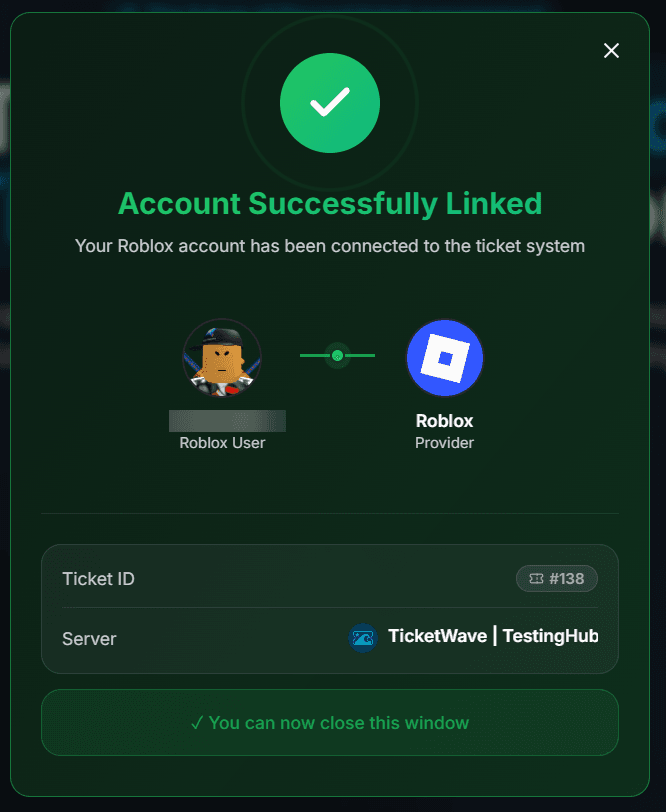
The requested scopes are read-only profile scopes. TicketWave cannot trade, cannot spend Robux and cannot join or manage groups.
Configure the Step
Open the Ticket Steps module
Server dashboard → Settings → Ticket Steps → Configure.
Create the step
| Field | Suggestion |
|---|---|
| Step Title | Verify your Roblox account |
| Step Description | Connect your Roblox account so we can find your player data. |
| Step Type | Roblox Authentication |
| Required Step | Enabled |
Combine it with a category
A ban appeal needs the Roblox account, a partnership request does not. Use Limit to Category so only the right tickets ask for it.
Test it
Open a ticket, sign in once and check the summary.
Troubleshooting
| Problem | Cause | Fix |
|---|---|---|
| The step does not appear | Premium inactive or step above the free limit | Check the Premium page and your step order |
| "Token invalid or expired" | More than 10 minutes passed | 🔁 Renew Token, then Login again |
| The avatar is missing on the confirmation page | The member did not share a profile picture | Harmless — name and ID are still stored |
| The member is signed into the wrong Roblox account | Multiple accounts in one browser | Sign out at roblox.com, renew the token and retry |
Next Steps
- Authentication Overview
- Button Steps (Ask which game or experience the ticket is about)
- Ticket Categories & Subcategories
How is this guide?