
Twitch
Verify a member's Twitch account inside a ticket with the Twitch Authentication step.
Twitch Authentication Step
The Twitch Authentication step connects a Discord member to their verified Twitch account — useful for creator communities, subscriber perks and stream teams.
This step type is a premium feature. No Twitch developer application is needed on your side.
Who Should Use This
- Creator servers handing out subscriber or VIP perks
- Stream teams and networks reviewing applications
- Communities running giveaways where the Twitch account matters
- Servers that get impersonation attempts of known streamers
What Gets Stored
| Field | Example | Description |
|---|---|---|
twitch_id | 123456789 | The permanent Twitch user ID |
twitch_username | PlayerOne | The Twitch display name at the time of verification |
> Twitch Verification: `PlayerOne` (`123456789`)How the Member Experiences It
The step shows a Login button with the Twitch logo.
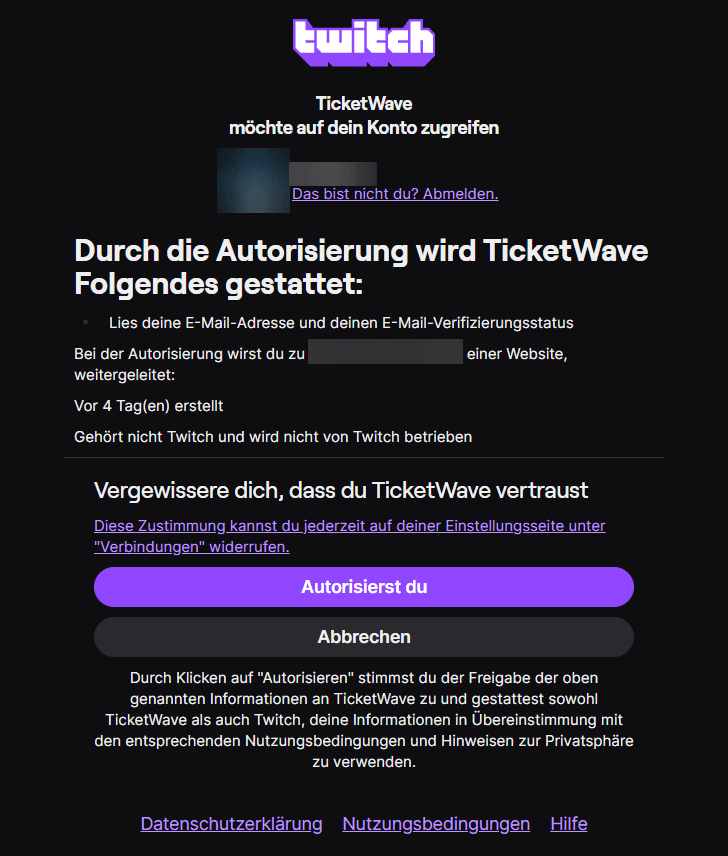
Twitch's authorization page opens and asks to grant TicketWave the user:read:email scope.
After the member authorizes, Twitch sends them back and TicketWave reads the public channel profile.
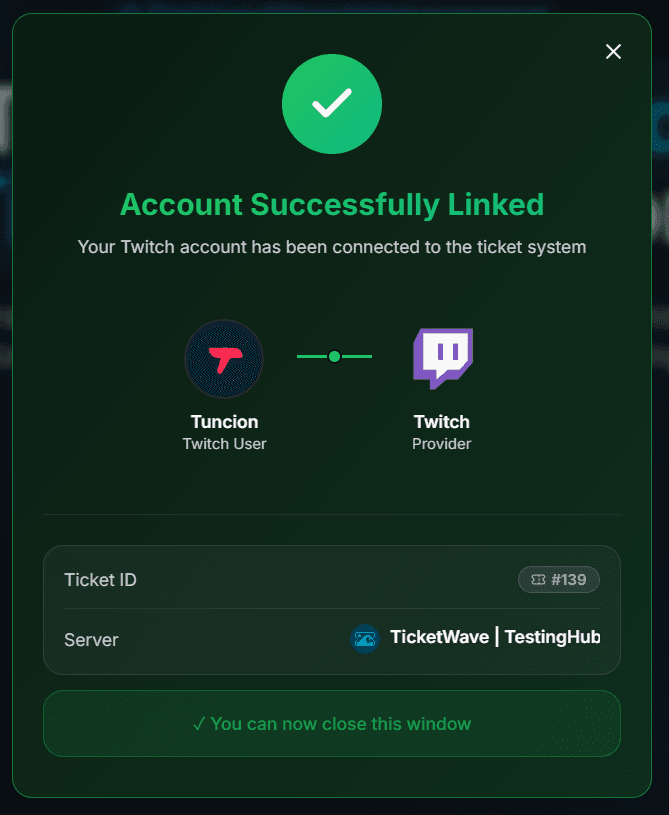
The confirmation page appears and the ticket continues.
user:read:email is the standard read-only scope Twitch uses for account identification. TicketWave stores only the Twitch ID and display name — the email address is not saved with your ticket.
Configure the Step
Open the Ticket Steps module
Server dashboard → Settings → Ticket Steps → Configure.
Create the step
| Field | Suggestion |
|---|---|
| Step Title | Connect your Twitch account |
| Step Description | We use your Twitch account to check your subscription and perks. |
| Step Type | Twitch Authentication |
| Required Step | Enabled for perk tickets, optional for general questions |
Put it behind the right category
Only ask for it in categories where it matters, e.g. Sub Perks or Team Application. Use Limit to Category for that.
Test it
Open a ticket and run through the login.
Troubleshooting
| Problem | Cause | Fix |
|---|---|---|
| The step does not appear | Premium inactive or step above the free limit | Check the Premium page and your step order |
| "Token invalid or expired" | More than 10 minutes passed | 🔁 Renew Token, then Login again |
| Twitch skips the consent screen | TicketWave was authorized before | Normal — the login is simply faster |
| The wrong Twitch account is linked | The browser is signed into another account | Sign out at twitch.tv, renew the token and retry |
Next Steps
- Authentication Overview
- Button Steps (Ask what kind of perk the ticket is about)
- Ticket Feedback & Ratings
How is this guide?