
Button Steps
Build your own ticket questions with custom buttons, optional skipping and automatic ticket closing.
Button Steps
A button step asks the member a question and lets them answer by clicking one of your own buttons. It is the only step type available on the free plan and the most flexible one.
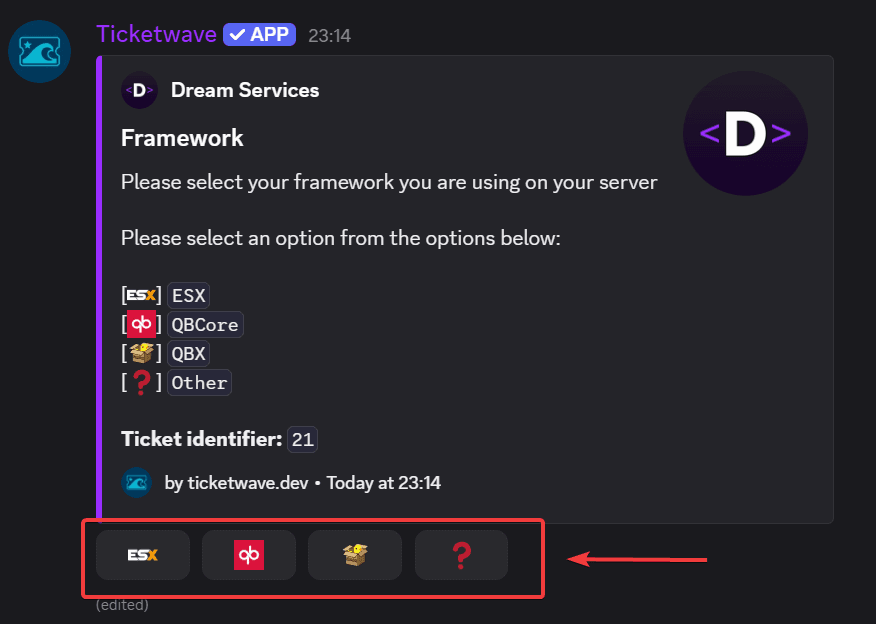
When to Use a Button Step
- "Did you already read our rules?"
- "Which platform are you playing on?"
- "Is this a bug report, a refund request or a general question?"
- "Do you have a valid purchase?"
If you need a structure (own Discord category, own ticket ID pattern, own staff flow), use Ticket Categories instead. Button steps are for information inside one ticket.
Create a Button Step
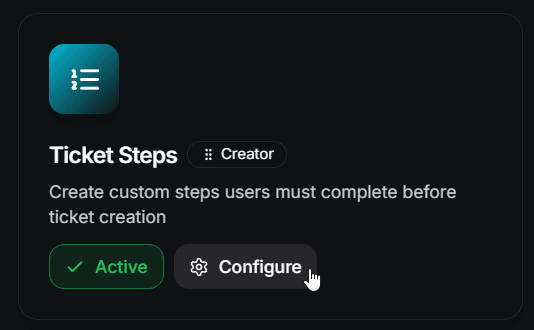
Add a step
Click Add Step and fill in the form:
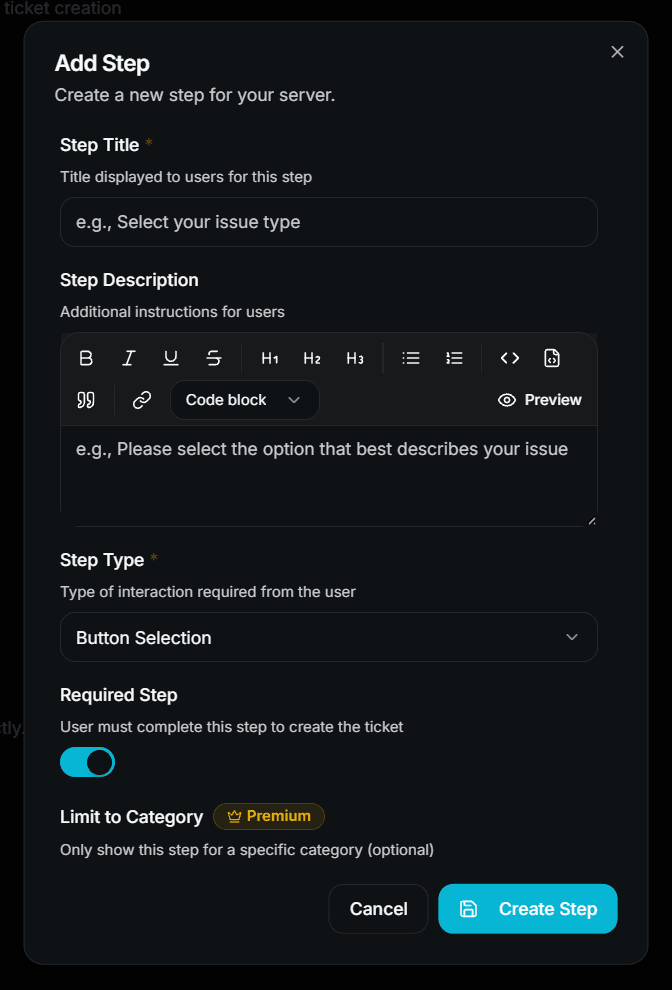
- Step Title — for example
Select your issue type - Step Description — for example
Please select the option that best describes your issue - Step Type — choose Button Selection
- Required Step — leave it on if the member must answer
- Limit to Category / Subcategory — optional, premium only
Click Create Step to save it.
Add the options
A button step without options is skipped automatically, so the next thing you need are Step Options.
Open the step you just created and add your options. Every option has:
| Field | Description | Premium |
|---|---|---|
| Parent Step | The step this option belongs to | ❌ Free |
| Option Name | Internal name — this is what staff sees in the ticket summary | ❌ Free |
| Button Label | The text on the Discord button | ❌ Free |
| Button Emoji | The emoji on the Discord button | ❌ Free (custom server emojis 👑) |
| Auto-Close Ticket | Close the ticket instantly when this option is picked | 👑 |
| Close Reason | The reason shown when the ticket is auto-closed | 👑 |
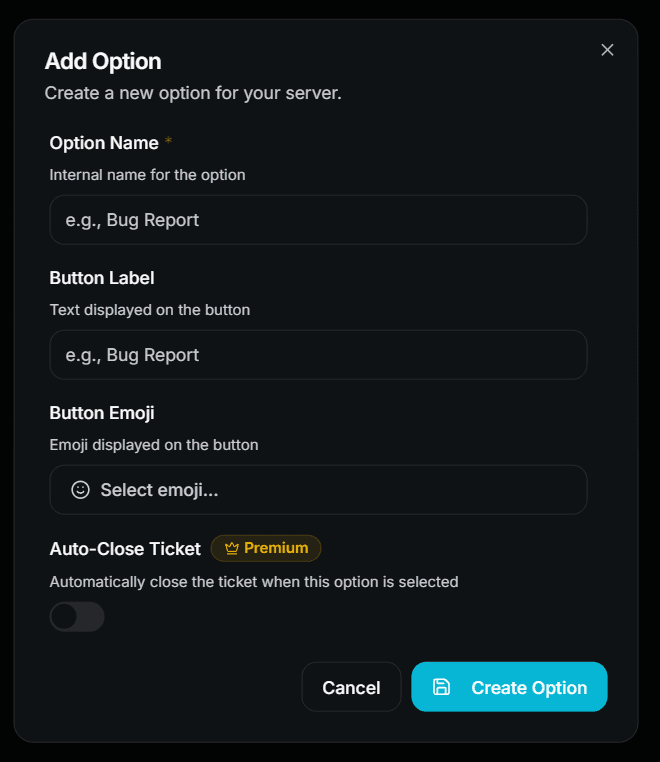
On the free plan you can create up to 3 options per step. Options above that limit are ignored until premium is active.
Order your options
Drag the options into the order you want and press Save Sequence. The order is the order of the buttons in Discord.
Test it
Open a ticket yourself and check that the step appears with the right buttons.
Optional Steps and Skipping
If you turn Required Step off, TicketWave adds an extra ⏭️ Skip button to the step.
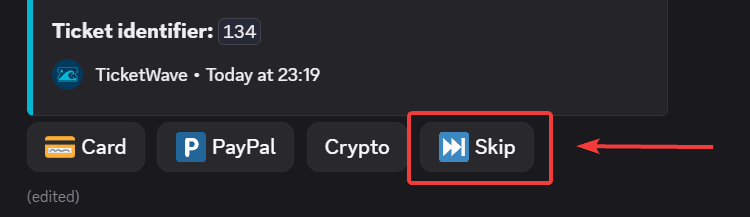
A skipped step is stored as an answer as well — the ticket summary shows ⏭️ Skipped for it, so your staff can tell "not answered" apart from "not asked".
Auto-Close on an Option
Auto-close turns a step option into a gate. The classic use case is a rules confirmation:
[✅] Yes, I read them        → ticket continues
[❌] No, not yet             → ticket closes with a reason
When the member picks an option with Auto-Close Ticket enabled, TicketWave closes the ticket immediately using your Close Reason.
Auto-close is a premium feature. Without premium the option still works as a normal button — it just does not close the ticket.
Emojis on Buttons
Standard Unicode emojis (😀, ✅, 🎮) work on every plan.
Custom server emojis require premium. Without premium a custom emoji is replaced with the neutral ⏺️ placeholder so your panel never breaks.
How Answers Appear to Your Staff
After all steps are answered, the ticket info embed lists every step and its answer:
> Select your issue type: 🐛 `Bug Report`
> Did you read our rules?: ✅ `Yes`
> Platform: ⏭️ `Skipped`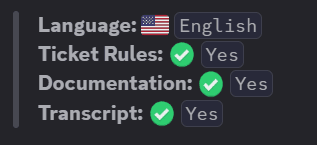
Common Mistakes
My step does not show up in the ticket!
Check these in order:
- Is the Ticket Steps module enabled?
- Does the step have at least one option? A button step without options is skipped.
- Are you over the step limit? On the free plan only the first step in the list is used.
- Did you set a Limit to Category / Subcategory that does not match the ticket?
- Do the buttons have a label or an emoji? Discord rejects buttons that have neither.
Next Steps
- Authentication Steps (Let members verify a Steam, CFX, GitHub, Roblox, Twitch, Battle.net or Epic Games account)
- Ticket Categories & Subcategories (Route tickets into different Discord categories)
- Design Your Ticket Panel (The panel your members click first)
How is this guide?