
Battle.net
Verify a member's Battle.net account (BattleTag) inside a ticket with the Battle.net Authentication step.
Battle.net Authentication Step
The Battle.net Authentication step verifies a member's Blizzard account and stores the BattleTag with the ticket.
This step type is a premium feature. TicketWave provides the Battle.net application — you only pick the step type.
Who Should Use This
- Overwatch, Diablo, World of Warcraft and Hearthstone communities
- Tournament and scrim servers that need a reliable BattleTag for invites
- Guilds and clans checking applications
- Any server tired of members typing their BattleTag wrong
What Gets Stored
| Field | Example | Description |
|---|---|---|
battlenet_id | 123456789 | The permanent Battle.net account ID |
battlenet_username | PlayerOne#1234 | The BattleTag at the time of verification |
> Battle.net Verification: `PlayerOne#1234` (`123456789`)A BattleTag can be changed. The account ID stays stable, so use it if you keep records over a longer period.
How the Member Experiences It
The step shows a Login button with the Battle.net logo.
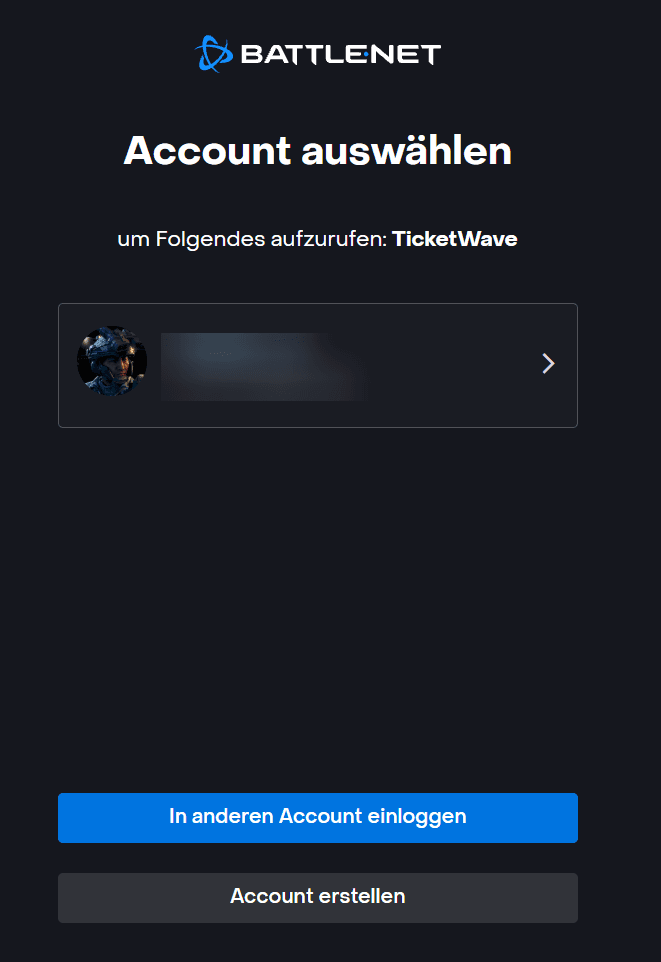
Blizzard's own login page opens and asks to share the account identity (openid scope) with TicketWave.
After confirming, the member is sent back and the BattleTag is stored as the step answer.
The confirmation page appears and the ticket moves on.
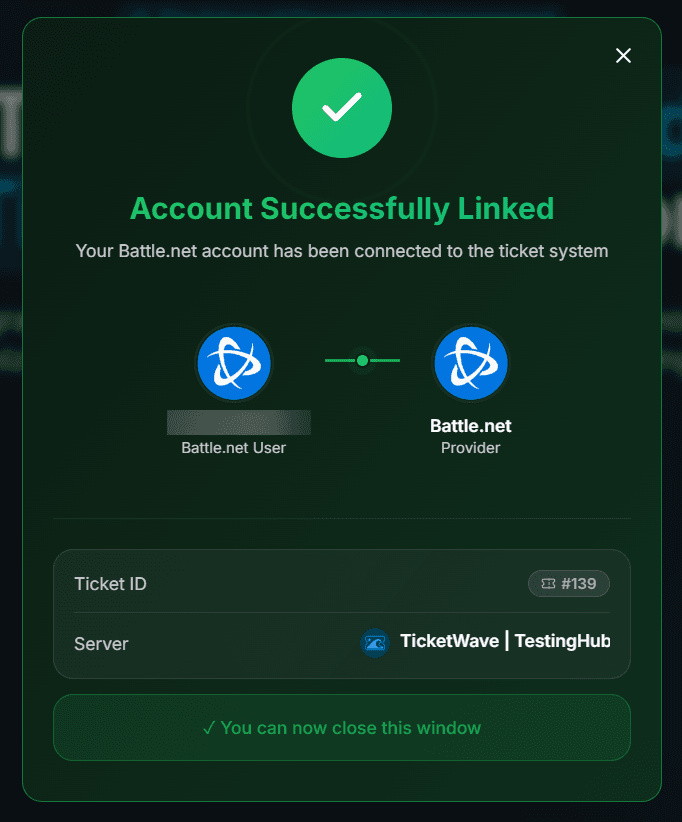
The openid scope only identifies the account. TicketWave gets no game data, no purchases and no friends list.
Configure the Step
Open the Ticket Steps module
Server dashboard → Settings → Ticket Steps → Configure.
Create the step
| Field | Suggestion |
|---|---|
| Step Title | Verify your Battle.net account |
| Step Description | Connect Battle.net so we get your correct BattleTag. |
| Step Type | Battle.net Authentication |
| Required Step | Enabled |
Use it in the right category
Scrim requests and clan applications need the BattleTag, a general question does not. Set Limit to Category accordingly.
Test it
Open a ticket and sign in once.
Troubleshooting
| Problem | Cause | Fix |
|---|---|---|
| The step does not appear | Premium inactive or step above the free limit | Check the Premium page and your step order |
| "Token invalid or expired" | More than 10 minutes passed | 🔁 Renew Token, then Login again |
| Blizzard asks for a security code | Two-factor authentication is active on the account | The member confirms it as usual and comes back automatically |
| The confirmation page has no avatar | Battle.net does not provide a profile picture | Expected — BattleTag and ID are still stored |
Next Steps
- Authentication Overview
- Button Steps (Ask which game or region the ticket is about)
- Ticket Categories & Subcategories
How is this guide?