
Ticket Panel
Build your ticket panel embed with the visual embed creator and send it to your support channel.
Guide to Your Ticket Panel
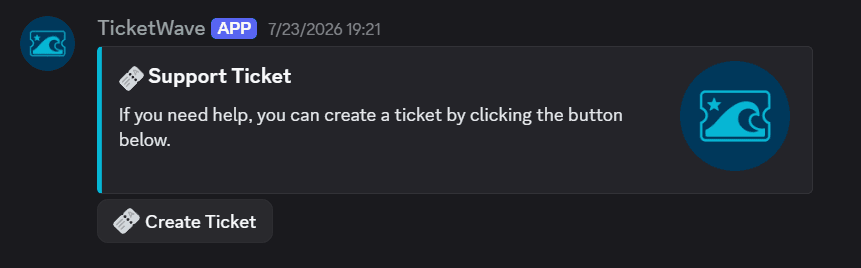
The ticket panel is the message your members click to open a ticket. It is the first thing they see from your support — and the only part of TicketWave that is public in your server.
Where to Build It
Server dashboard → Settings → Ticket Message → Configure.
This module is an Embed Creator: you edit on the left, and a Live Preview on the right shows exactly what Discord will render.
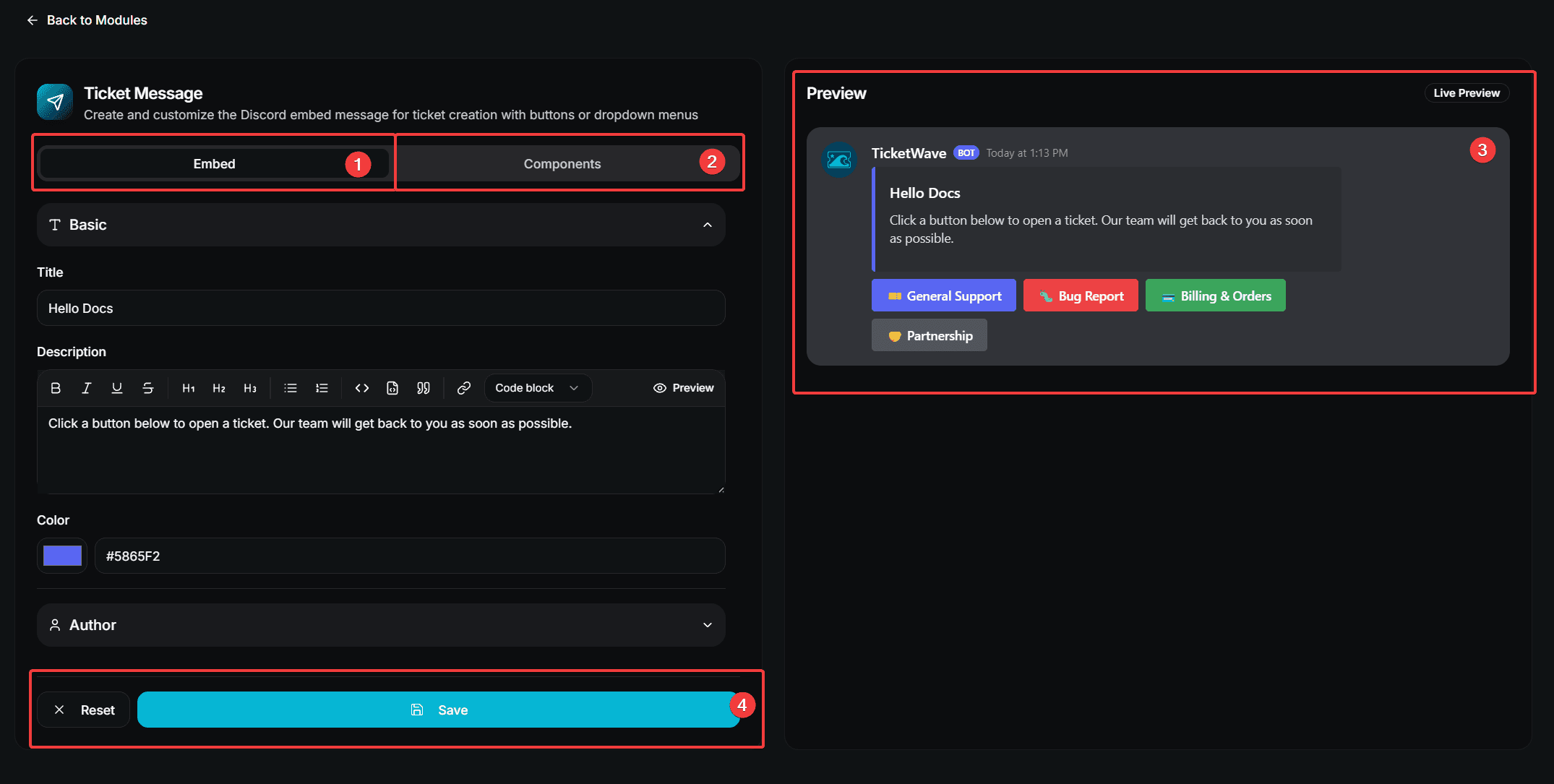
- Embed tab — the look of the message
- Components tab — the buttons or the dropdown menu
- Live Preview
- Reset / Save
The Embed Tab
| Section | Fields |
|---|---|
| Basic | Title, Description, Color |
| Author | Author Name, Author Icon URL |
| Fields | Any number of name/value fields, each optionally inline |
| Images | Image URL, Thumbnail URL |
| Footer | Footer Text, Footer Icon URL, Show Timestamp |
Leave everything empty and TicketWave falls back to its default panel embed using your branding colors.
The Components Tab
A panel uses either buttons or a dropdown menu — pick one under Component Type.
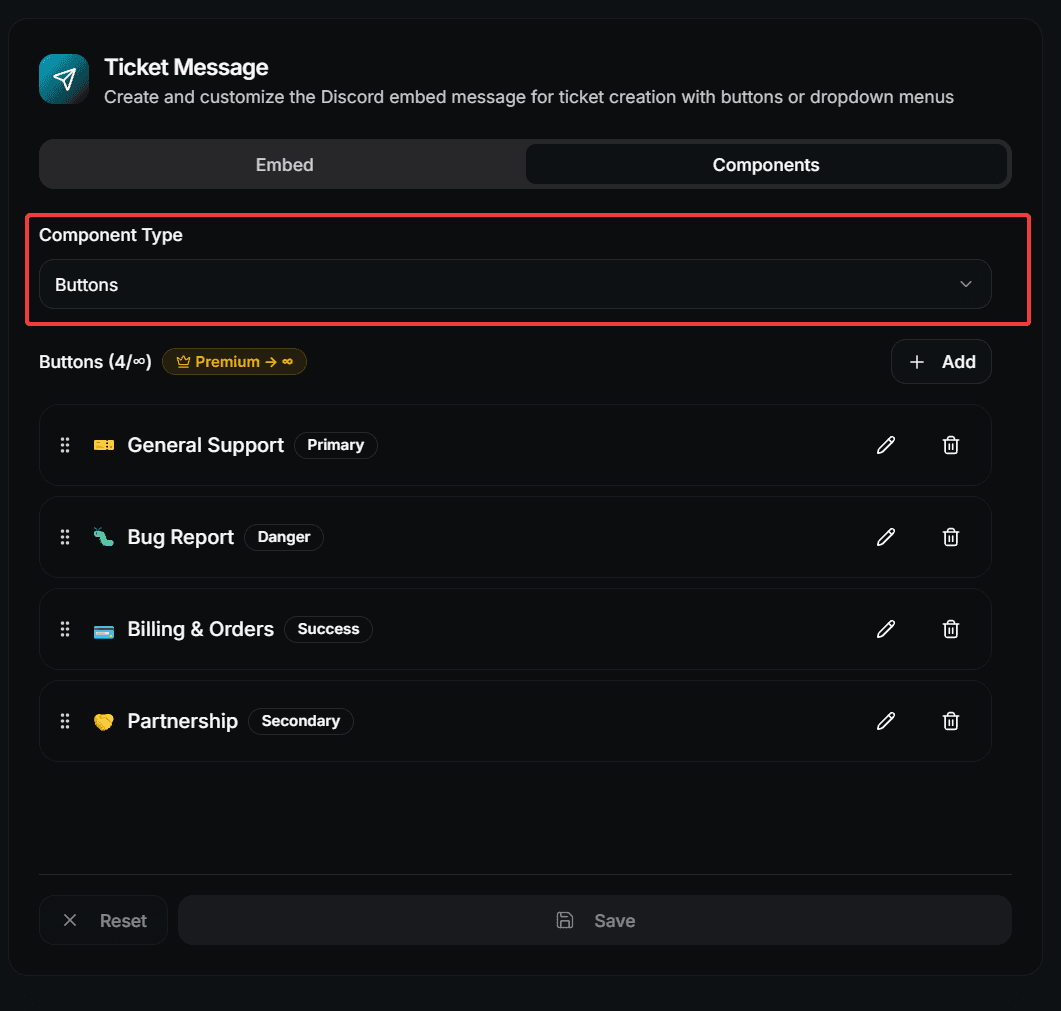
Buttons
| Field | Description |
|---|---|
| Label | The text on the button. Required. |
| Style | Primary (blue), Secondary (gray), Success (green) or Danger (red) |
| Emoji | Optional emoji on the button |
| Link to Category | Opens the ticket directly in this category |
| Link to Subcategory | Opens the ticket directly in this subcategory |
Dropdown Menu
| Field | Description |
|---|---|
| Placeholder Text | The grey text shown before a member picks something |
| Label | The option name. Required. |
| Description | A short line below the label. Required. |
| Emoji | Optional emoji on the option |
| Link to Category / Subcategory | Same as for buttons |
Linking a button or menu option directly to a category skips the category question inside the ticket. One click, and the member is already in the right place.
Order
Drag your buttons or menu items into place and press Save Sequence. The order in the creator is the order in Discord.
Send the Panel to a Channel
Save your changes in the embed creator.
Go to the Discord channel where the panel should appear.
Run /ticket panel.
/ticket panel/ticket panel requires Administrator permission. Full details on the command page.
The command sends a new message. It does not update older panels — every run creates a fresh one. After a redesign, send a new panel and delete the old message.
Limits
| Item | Free | Premium |
|---|---|---|
| Custom embed (title, description, color, fields, images, footer) | ✅ | ✅ |
| Buttons | 3 | Unlimited |
| Menu options | 3 | Unlimited |
| Custom server emojis | ❌ | ✅ |
Discord itself limits an action row to 5 buttons. TicketWave fills the row in your saved order.
What Members See Without Configuration
If you have no buttons or menu options configured, TicketWave shows a single default component:
- Button mode — one 🎫 button that opens a ticket
- Menu mode — one 🎫 option that opens a ticket
This is why a fresh server can receive tickets immediately after /admin setup.
Design Tips
A panel is a signpost, not a manual.
- Three to five options maximum. More choices means more wrong choices.
- Name the outcome, not the department. "Report a bug" beats "Tier 2 Support".
- Say what happens next in the description: "A private channel opens and our team answers within 24 hours."
- Use a dropdown when you have descriptions to give, buttons when the labels speak for themselves.
- Set expectations — if you only answer on weekdays, write it in the panel instead of getting asked every weekend.
Troubleshooting
| Problem | Fix |
|---|---|
/ticket panel reports missing permission | The bot needs View Channel and Send Messages in the target channel |
| The panel looks like the default one | The Ticket Message module was never saved — open it and press Save |
| A button is missing | You are over the free limit of 3, or the button has no label |
| The emoji is not shown | Custom server emojis require premium, and the emoji must exist in your server |
Next Steps
- Ticket Categories & Subcategories (What the buttons should link to)
- Branding & Appearance (Make every embed yours)
- Limits, Cooldowns & Captcha (Protect the panel from spam)
How is this guide?