
Limits, Cooldowns & Captcha
Protect your ticket system from spam with open limits, cooldowns, a captcha and the blacklist.
Guide to Spam Protection
A public button that creates a private channel is a magnet for abuse. TicketWave gives you four independent layers to control it — use as many as your community needs.
| Layer | Stops |
|---|---|
| Open limit | One member holding ten tickets open at once |
| Cooldown | Ticket → close → ticket → close loops |
| Captcha | Automated selfbots and raid scripts |
| Blacklist | The one member who keeps doing it anyway |
Layer 1 — Open Ticket Limits
Per Member
Server dashboard → Settings → Ticket System → Configure → Ticket Open Limit.
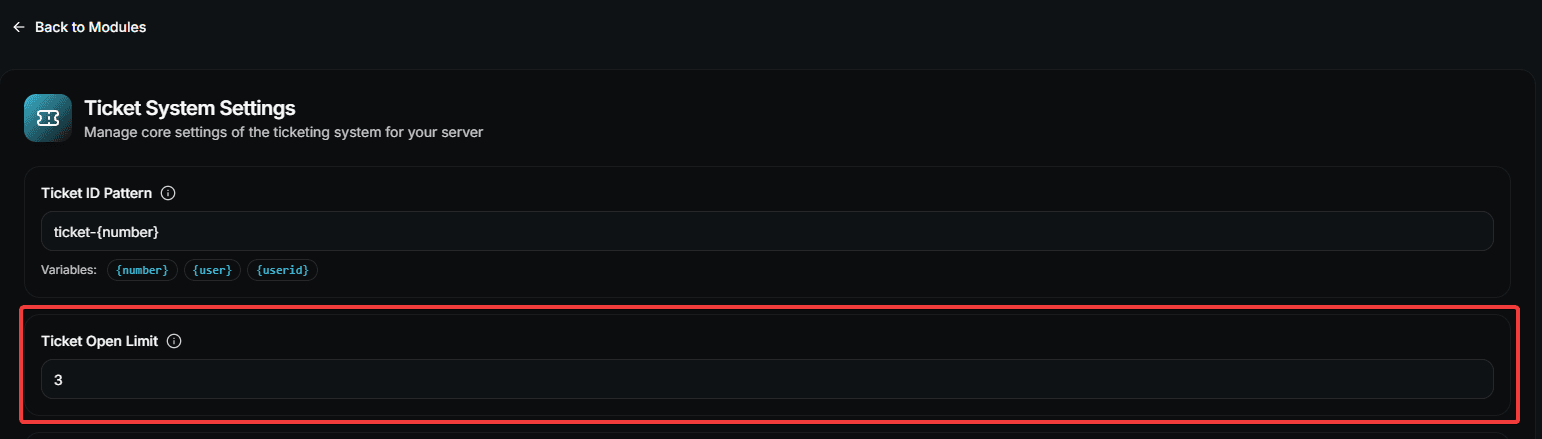
| Value | Meaning |
|---|---|
1 | One open ticket per member — the default and the right answer for most servers |
3 | Useful when a member may legitimately have several unrelated cases |
-1 | Unlimited |
When the limit is reached, the member gets an ephemeral message instead of a new ticket.
Per Server
There is also a global limit on how many tickets can be open in the whole server at the same time:
| Plan | Global limit |
|---|---|
| Free | 10 open tickets |
| Premium | Unlimited |
On the free plan, ticket number 11 is rejected until your team closes something. If your support runs into this regularly, that is the moment premium starts paying for itself.
Layer 2 — Cooldowns
Cooldowns put time between two actions of the same member.
Configure a cooldown
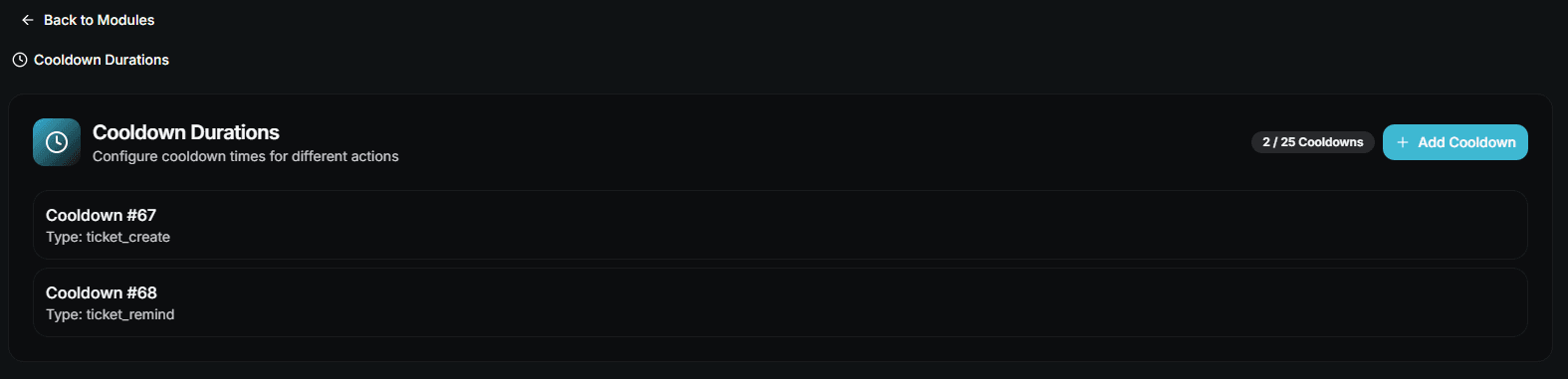
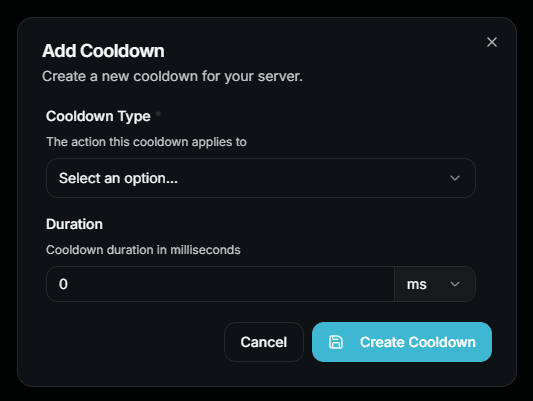
Server dashboard → Settings → Cooldown Durations → Configure → Add Cooldown.
| Field | Description |
|---|---|
| Cooldown Type | Ticket Creation or Ticket Remind |
| Duration | How long the member has to wait |
| Type | What it limits |
|---|---|
| Ticket Creation | Time between two new tickets by the same member |
| Ticket Remind | Time between two reminder messages in a ticket |
When a cooldown is active, the member sees exactly when they can try again.
Admin bypass
Settings → Administrator Settings → Admin Cooldown Bypass lets server administrators ignore ticket cooldowns. Handy while you are testing your own setup.
Start with a 10 to 15 minute creation cooldown. It stops loops without punishing a member who genuinely forgot something.
Layer 3 — Captcha
The Captcha System module asks the member to read a distorted image and pick the matching text from a dropdown before the ticket is created.
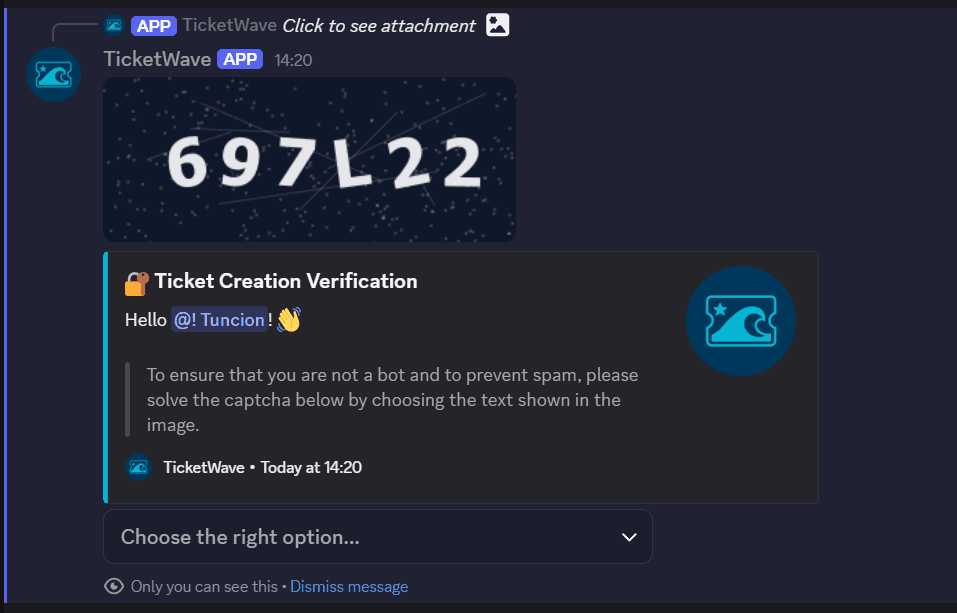
The member clicks the ticket panel button.
An ephemeral message with a captcha image appears — only that member sees it.
They pick the right answer from the dropdown.
The ticket is created normally. A wrong answer means no ticket.
Enable it in Settings → Captcha System. There is nothing else to configure.
The captcha costs a member about five seconds and is free on every plan. For public servers with an open invite it is the single most effective anti-raid switch.
Layer 4 — Blacklist
The blacklist blocks a specific member from creating tickets at all.
- Add someone with the Ticket Blacklist Add context menu
- Remove them with Ticket Blacklist Remove
- Review the full list on the dashboard's Blacklist page
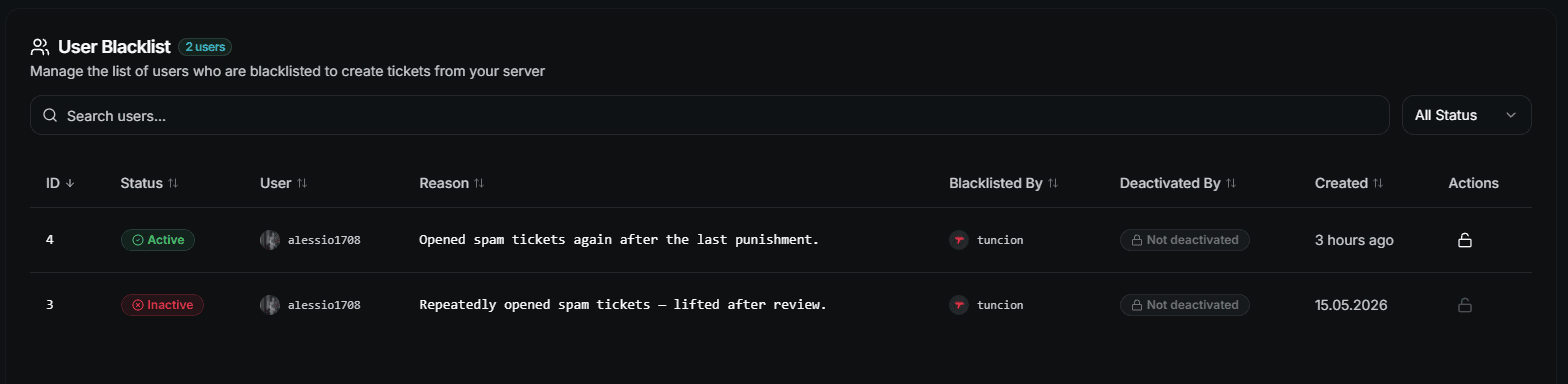
The table shows the status, the member, the reason, who blacklisted them, who deactivated the entry and when. The Unlock User action lifts a block.
| Plan | Blacklist entries |
|---|---|
| Free | 1 |
| Premium | Unlimited |
Log blacklist changes to a staff channel so the whole team knows who was blocked and why — see Log Channels.
The Order Checks Run In
When a member clicks your panel, TicketWave checks in this exact order:
Is the category system active and are categories available?
Is the member below the personal open ticket limit?
Is the server below the global open ticket limit?
Is the member blacklisted?
Is a creation cooldown running?
Is the default ticket category configured and does it still exist?
Is holiday mode blocking new tickets?
Does the bot have the required permissions — globally and in the ticket category?
Is a captcha required?
The ticket is created.
This list is also the fastest troubleshooting checklist. If a member cannot open a ticket, walk down it from the top — the first failing check is your answer.
Next Steps
- Holiday Mode (Pause ticket creation on purpose)
- Log Channels (See who was blocked and when)
- Ticket Steps Overview (Filter out low quality tickets with questions)
How is this guide?