
Settings Page
Learn how the TicketWave settings page is structured and how to configure any module.
Guide to the Settings Page
Almost everything TicketWave does is configured on one page: Settings. This guide explains how that page is built, so every other guide becomes a two minute job.
Open the Settings
Requirements
- You are logged in (see our Login Guide if you haven't already).
- TicketWave is on your server (see our Quick Start).
- You are the server owner or have Administrator permission.
Select your server
Go to https://ticketwave.dev, open your Dashboard and click Continue on the server you want to configure.
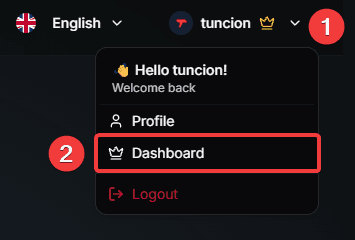
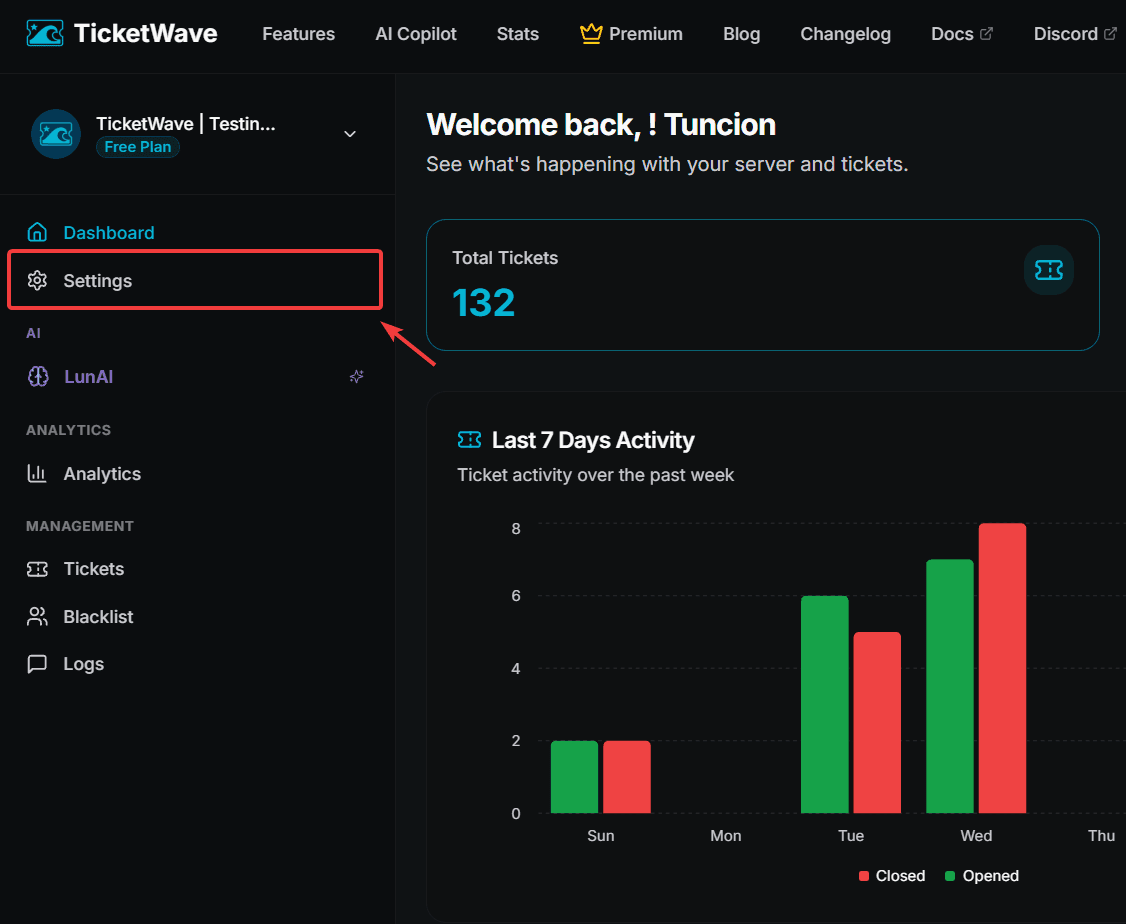
The Module Grid
Every feature is a module. The settings page shows all of them as cards.
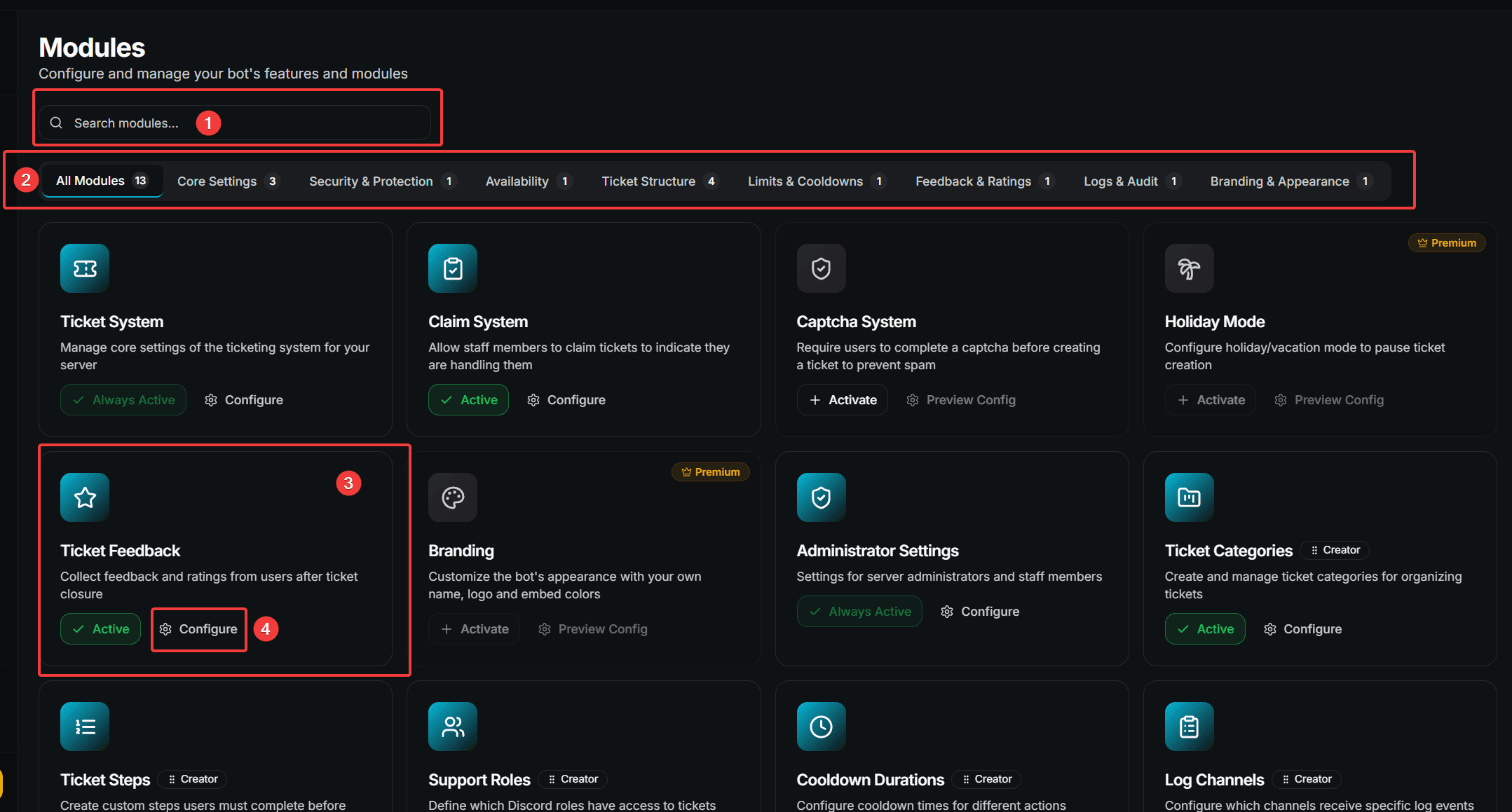
- Search — type a module name to filter instantly
- Category filter — jump to a group of modules
- Module card — one feature
- Configure — opens the module
The Three Kinds of Modules
Not every module behaves the same. The badge on the card tells you which type you are looking at:
| Badge | Type | What it does |
|---|---|---|
| (none) | Settings module | A form with fields you fill in and save |
| Creator | Creator module | A list you add, edit, delete and reorder items in |
| Embed | Embed creator | A visual Discord embed builder with a live preview |
| Premium | Premium module | Requires an active premium subscription |
Module Categories
The filter bar groups the modules:
| Category | Contains |
|---|---|
| All Modules | Everything |
| Core Settings | Ticket system basics and administrator settings |
| Security & Protection | Captcha and abuse prevention |
| Availability | Holiday mode |
| Ticket Structure | Categories, subcategories, steps, claim system, panel message |
| Limits & Cooldowns | Cooldown durations |
| Feedback & Ratings | Feedback after ticket closure |
| Logs & Audit | Log channels |
| Branding & Appearance | Colors, author, footer and thumbnail |
Enabling and Disabling a Module
Each card shows its state:
| State | Meaning |
|---|---|
| Active | The module is on and can be turned off |
| Always Active | A core module that cannot be turned off |
| Activate | The module is off — click to turn it on |
Turning a module off does not delete its configuration. Everything stays stored and comes back the moment you enable it again.
Configuring a Settings Module
Click Configure on the module card.
Change the fields you need.
A save bar appears at the bottom saying You have unsaved changes.
Click Save — or Reset to throw the changes away.
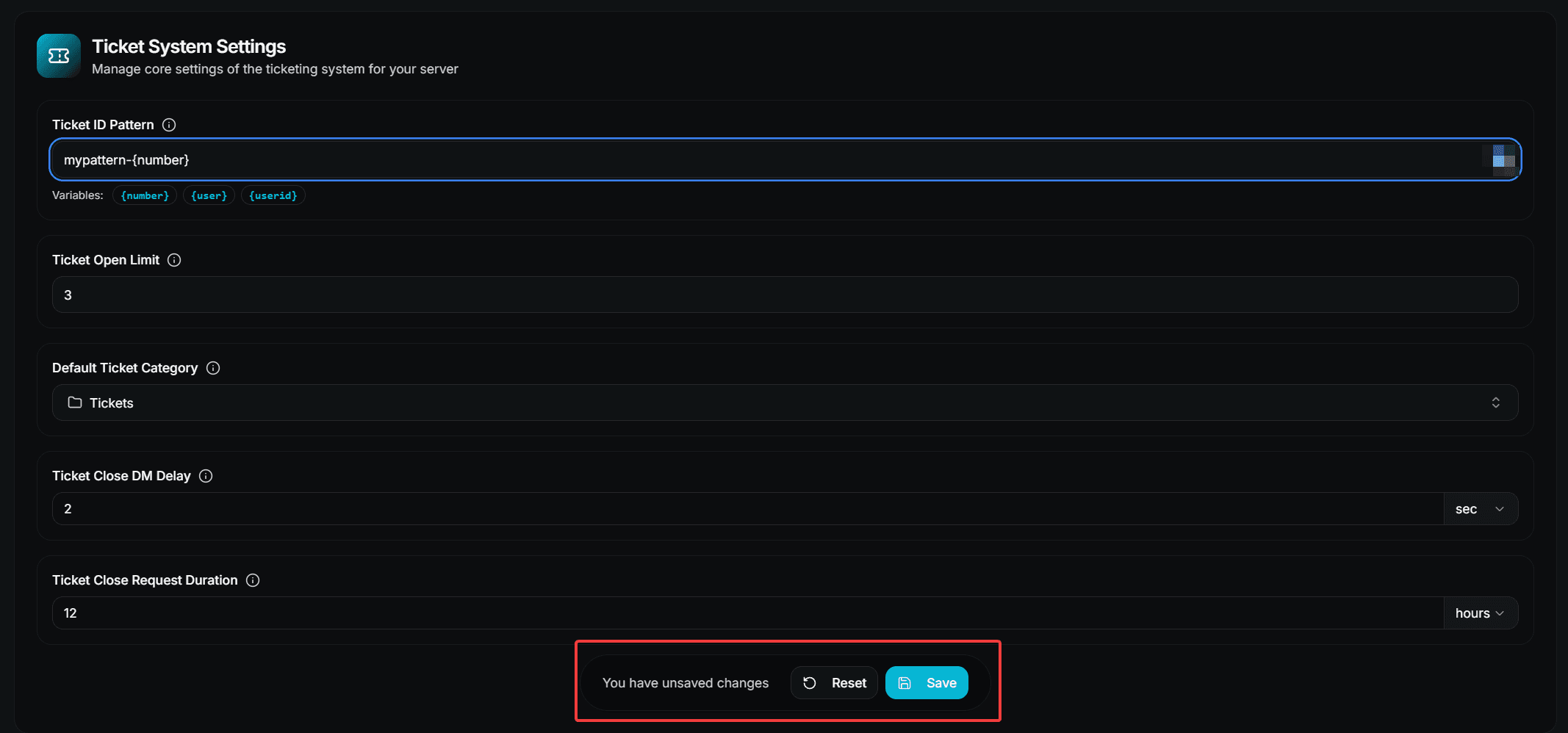
Nothing is applied until you press Save. Leaving the page with unsaved changes discards them.
Working with Creator Modules
Creator modules manage lists — categories, subcategories, steps, step options, support roles, cooldowns and log channels.
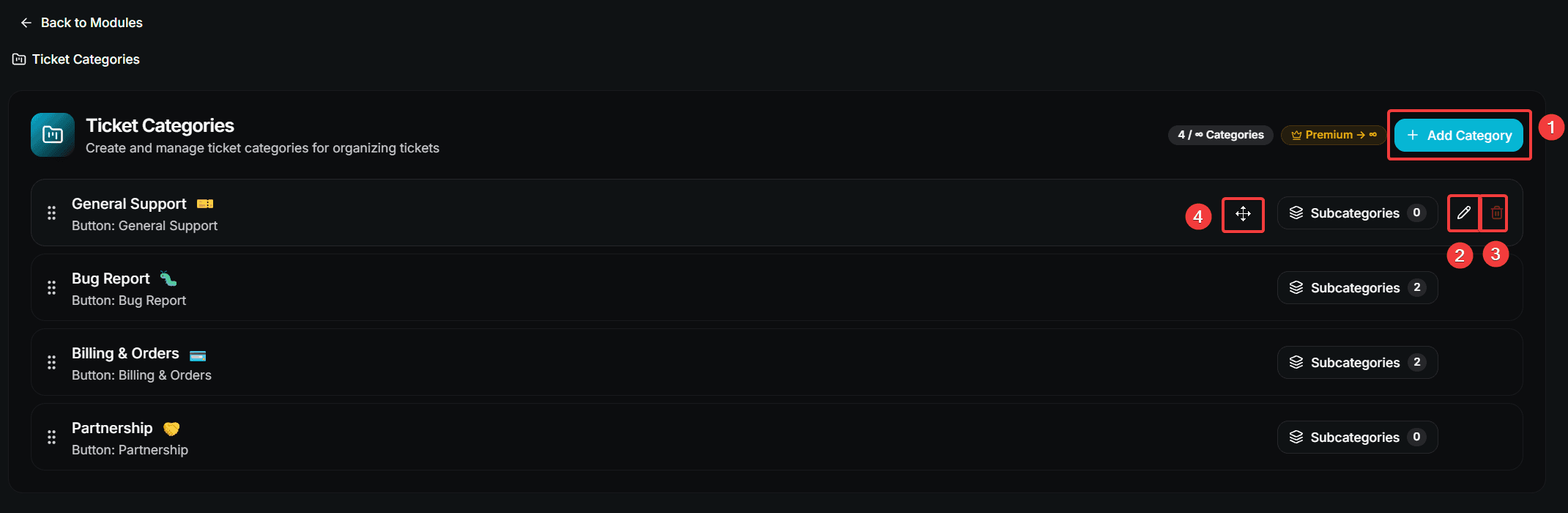
- Add … — opens a modal to create a new item
- Edit — opens the same modal with the current values
- Delete — asks for confirmation, then removes the item permanently
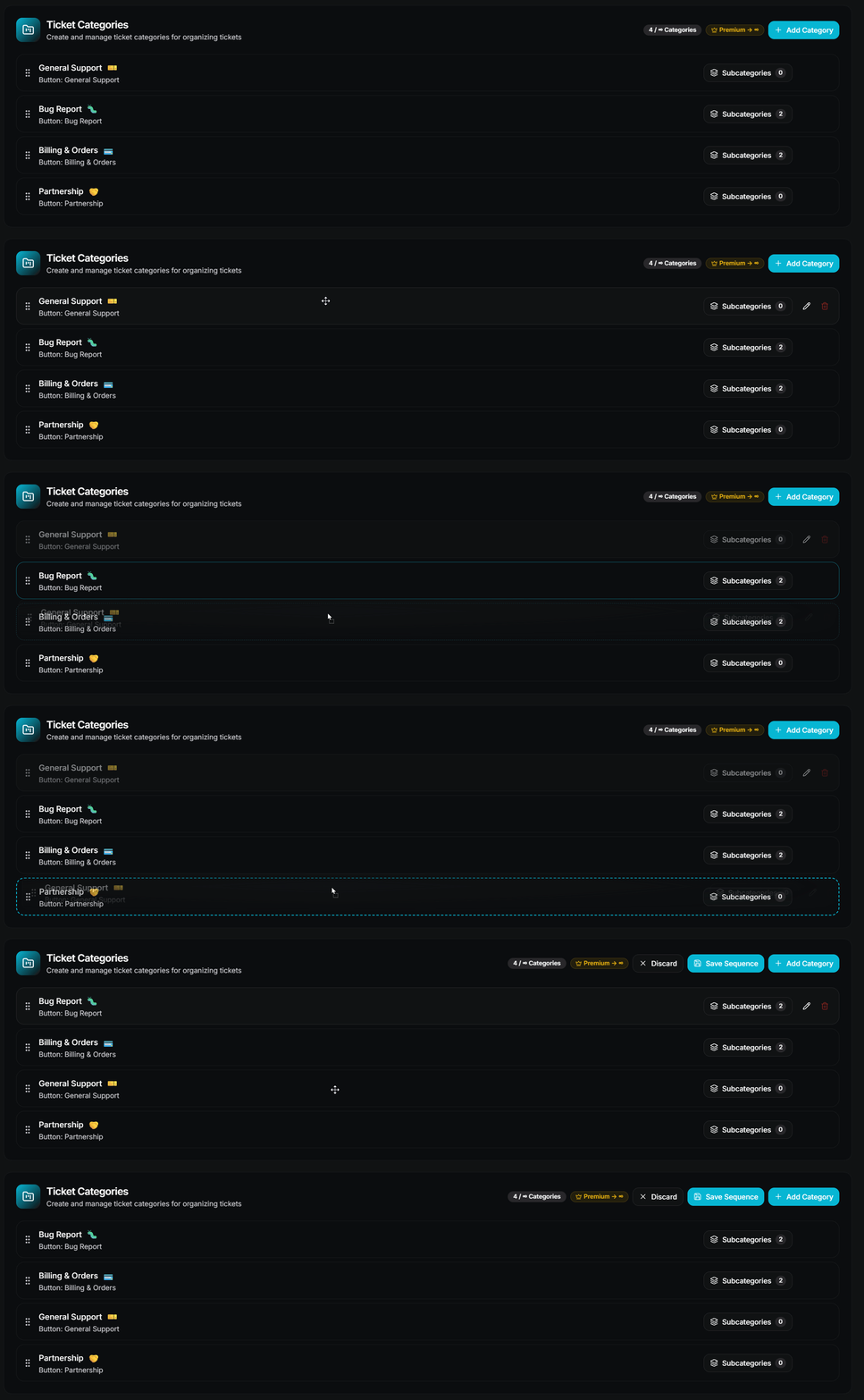
- Drag handle — reorders the list (only where order matters)
Deleting an item cannot be undone. The confirmation modal exists for a reason.
Saving a New Order
Reordering is not saved automatically. After dragging, a bar appears with Save Sequence and Discard. The new order is only stored when you press Save Sequence.
Order matters more than you think — on the free plan only the first n items of a list are used. See the limits table of each guide.
Premium Fields
Some modules are completely premium, and some free modules contain single premium fields. Both are marked with a Premium badge.
Premium fields can be viewed but not used without an active subscription — the stored value simply stays inactive until premium is enabled.
Premium is not only available as a paid plan. You can also unlock it with Vote Coins.
Next Steps
Now that you know the page, pick what you want to configure:
How is this guide?