
Log Channels
Send every ticket event to the Discord channel where your team actually needs it.
Guide to Ticket Logging
Logging answers the questions that come up after something happened: who closed that ticket, who unblacklisted that member, why is this channel suddenly named differently.
TicketWave sends each event type to a Discord channel you choose — so you can split noisy events from important ones.
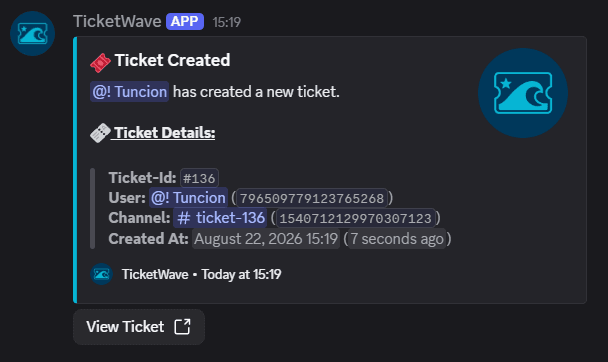
Configure a Log Channel
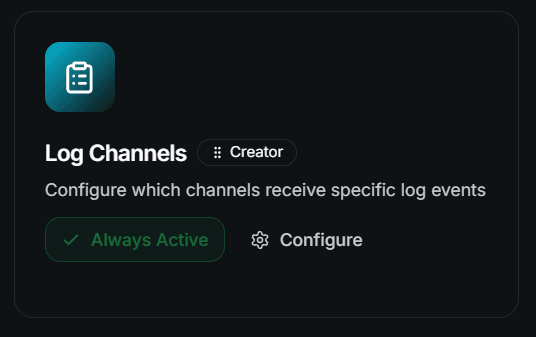
Add a log channel
Click Add Log Channel and fill in three fields:
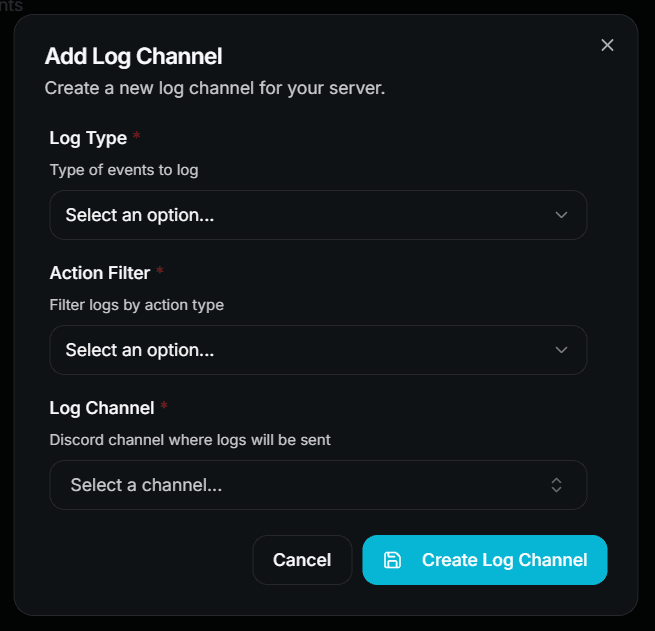
| Field | Description |
|---|---|
| Log Type | Which events should be logged |
| Action Filter | Add for creation events, Remove for removal events |
| Log Channel | The text or announcement channel that receives them |
Each entry is one type + action → channel rule. Add as many rules as you need, and point several types at the same channel if you like.
Repeat for every event you care about
Nothing is logged until you create a rule for it. There is no "log everything" switch — that is intentional, so your channels only contain what you actually read.
Available Log Types
| Log Type | Actions | Logs when… | Premium |
|---|---|---|---|
| Ticket Create | Add | A ticket is created | ❌ Free |
| Ticket Close | Add | A ticket is closed | ❌ Free |
| Ticket Close Cancel | Add | A running close is cancelled | ❌ Free |
| Ticket Schedule Close | Add | A close is scheduled | ❌ Free |
| Ticket Request Close | Add | Staff asks the member to close | ❌ Free |
| Ticket Request Close Accept | Add | The member accepts the close request | ❌ Free |
| Ticket Request Close Deny | Add | The member denies the close request | ❌ Free |
| Ticket Claim | Add | A ticket is claimed | ❌ Free |
| Ticket Unclaim | Add | A ticket is released again | ❌ Free |
| Ticket Blacklist | Add, Remove | A member is blacklisted or unblocked | ❌ Free |
| Ticket Feedback | Add | A member submits feedback | 👑 |
| Ticket Remind | Add | A reminder is sent | 👑 |
| Ticket Additional Access | Add, Remove | A user or role is added to / removed from a ticket | 👑 |
| Ticket Priority | Add | A ticket priority is changed | 👑 |
| Ticket Rename | Add | A ticket channel is renamed | 👑 |
Blacklist and Additional Access have two actions. Create two rules if you want both the add and the remove event — one rule only covers one direction.
A Setup That Works
Three channels are usually enough:
#ticket-log        → Ticket Create, Ticket Close, Ticket Schedule Close,
                     Ticket Close Cancel, Request Close (+ Accept / Deny)

#staff-log         → Ticket Claim, Ticket Unclaim, Ticket Priority,
                     Ticket Rename, Ticket Additional Access (Add + Remove)

#moderation-log    → Ticket Blacklist (Add + Remove), Ticket Feedback
Keep the channels staff only. A ticket close log contains the close reason and the transcript link.
Reading Logs on the Website
Beside the Discord channels, the dashboard has a Logs page with the complete history in a searchable table.
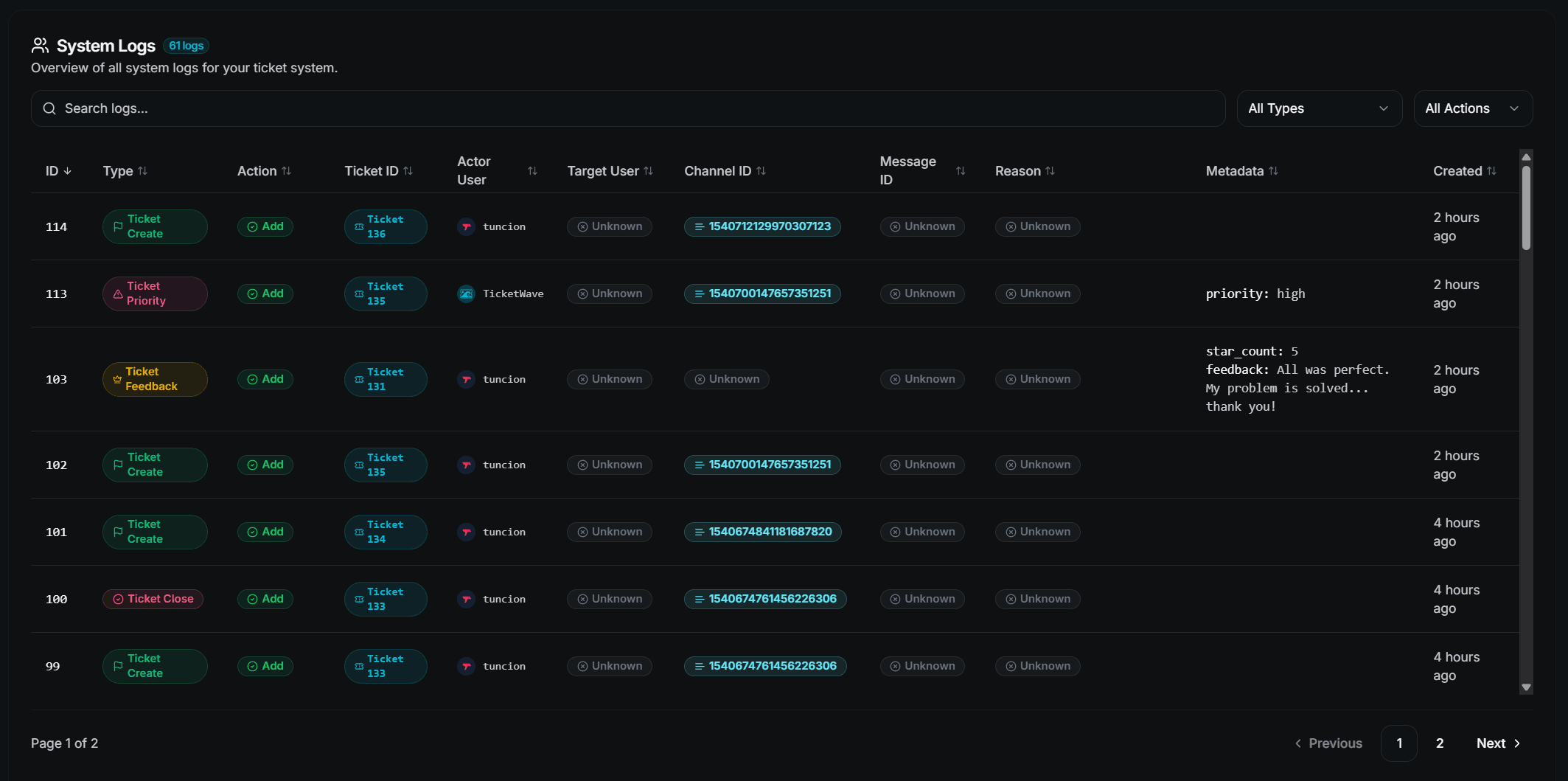
You can filter by type and action, search the whole table and page through the results. Each row shows the ticket ID, the acting user, the target user, the channel, the reason and additional metadata.
The Logs page is a premium feature. Discord log channels themselves are free for most event types.
Troubleshooting
| Problem | Fix |
|---|---|
| Nothing is logged | No rule exists for that type — add one |
| Only additions are logged | Add a second rule with the action Remove |
| Some types cannot be selected | They are premium — see the table above |
| The channel stays empty | The bot needs View Channel, Send Messages and Embed Links there |
Next Steps
- Ticket Transcripts (What the close log links to)
- Analytics (Numbers instead of single events)
- Blacklist context menus (Block a member in two clicks)
How is this guide?