
🔐 Authentication
Steam
使用 Steam Authentication 步驟,在票單內驗證成員的 Steam 帳號。
Steam Authentication 步驟
Steam Authentication 步驟可讓成員證明哪個 Steam 帳號屬於自己。TicketWave 使用 Steam 官方的 OpenID 登入機制,也就是 Steam 用於交易與社群網站的同一套機制。
這種步驟類型是 premium 功能。你這邊不需要註冊任何東西。
誰應該使用這個
- 依 SteamID64 封鎖、白名單或發放獎勵的遊戲伺服器
- 需要將購買紀錄與 Steam 帳號比對的商店與腳本賣家
- Discord 名稱與遊戲內名稱永遠對不上的社群
會儲存哪些資料
| Field | Example | Description |
|---|---|---|
steam_id | 76561198000000000 | SteamID64 — 永久且唯一 |
steam_username | PlayerOne | 驗證當下的 Steam 暱稱 |
> Steam Verification: `PlayerOne` (`76561198000000000`)Steam persona name 可以隨時更改,但 SteamID64 不行。當你要封鎖、加入白名單或查詢玩家時,請一律使用 ID — 名稱只是用來讓票單更容易閱讀。
成員會如何體驗
這個步驟會顯示一個帶有 Steam 標誌的 Login 按鈕。
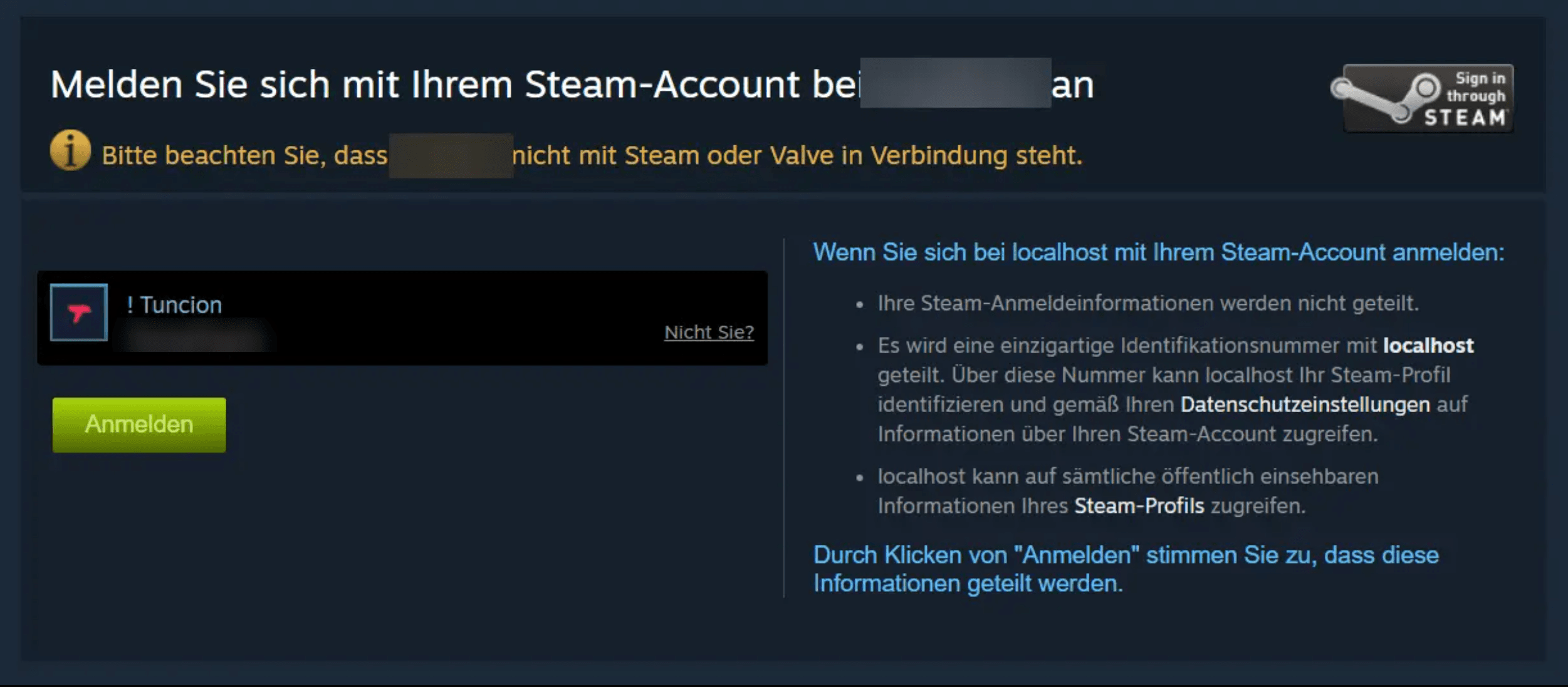
Steam 自己的登入頁面會開啟。這裡不會出現權限畫面 — Steam OpenID 只會確認成員是 誰。
Steam 會把成員帶回來,TicketWave 會用 Steam 驗證簽章並讀取公開個人資料。
會出現 "Account Successfully Linked" 頁面,然後票單會繼續進行。
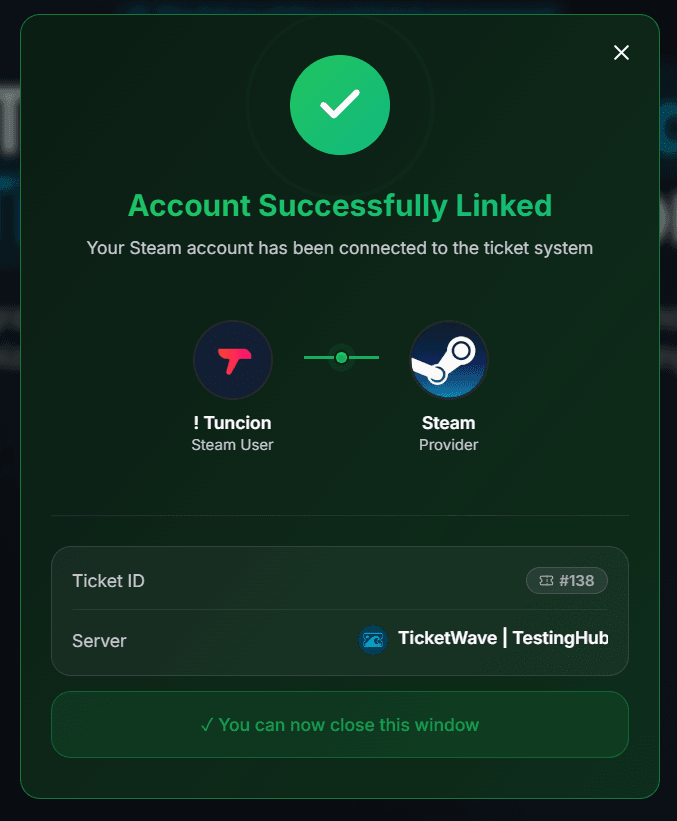
Steam OpenID 不會讓 TicketWave 存取帳號 — 沒有遊戲庫、沒有庫存、沒有好友、沒有電子郵件。它只回答這個問題:「這真的是那個 SteamID 的擁有者嗎?」。
設定這個步驟
開啟 Ticket Steps 模組
Server dashboard → Settings → Ticket Steps → Configure。
建立步驟
| Field | Suggestion |
|---|---|
| Step Title | Verify your Steam account |
| Step Description | Sign in with Steam so we can look up your player data. |
| Step Type | Steam Authentication |
| Required Step | Enabled |
在適合的地方限制它(選用)
把這個步驟放在像 In-Game Support 或 Ban Appeal 這類分類底下,這樣只是單純提問的成員就不會被要求登入。
測試它
開啟一個票單,走完整個登入流程,並檢查票單摘要。
疑難排解
| Problem | Cause | Fix |
|---|---|---|
| The step does not appear | Premium inactive or step above the free limit | Check the Premium page and your step order |
| "Token invalid or expired" | More than 10 minutes passed | 🔁 Renew Token, then Login again |
| The verification fails | Steam could not confirm the sign-in response | Ask the member to try again — this is almost always a temporary Steam issue |
| The profile is private | Steam still confirms the identity | The ID is always returned; only the display name may fall back |
下一步
- Authentication Overview
- CFX / FiveM Authentication (Popular in combination with Steam)
- Ticket Categories & Subcategories
How is this guide?