
Add New Servers
Learn how to add new servers to your dashboard account
Guide to Add New Servers
In this guide, we will walk you through the process of adding TicketWave to new servers. This is useful if you have multiple servers and want to manage them all from one account.
Server List
Requirements
- You are logged in (see our Login Guide if you haven't already).
- You have at least one server which has the necessary permissions to add TicketWave to a server.
Visit the Website
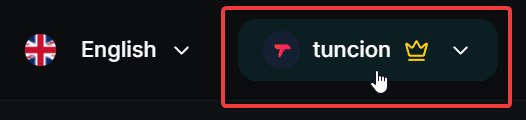
Go to https://ticketwave.dev and click on your discord name and logo on the top right corner.
Open Dashboard
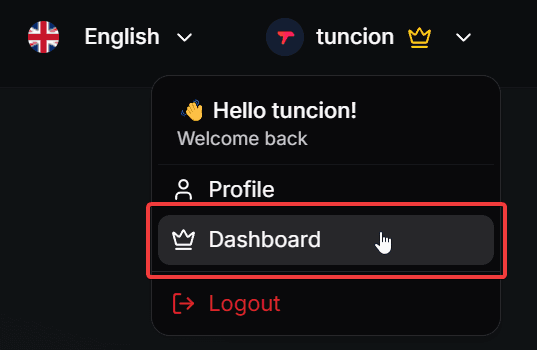
Click on the Dashboard button in the dropdown menu to access your server list.
See Server List
You will see a list of servers that are possible to add TicketWave to. This list is generated based on the permissions of your account. If you don't see a server that you want to add, make sure you have the necessary permissions in that server and refresh the page.
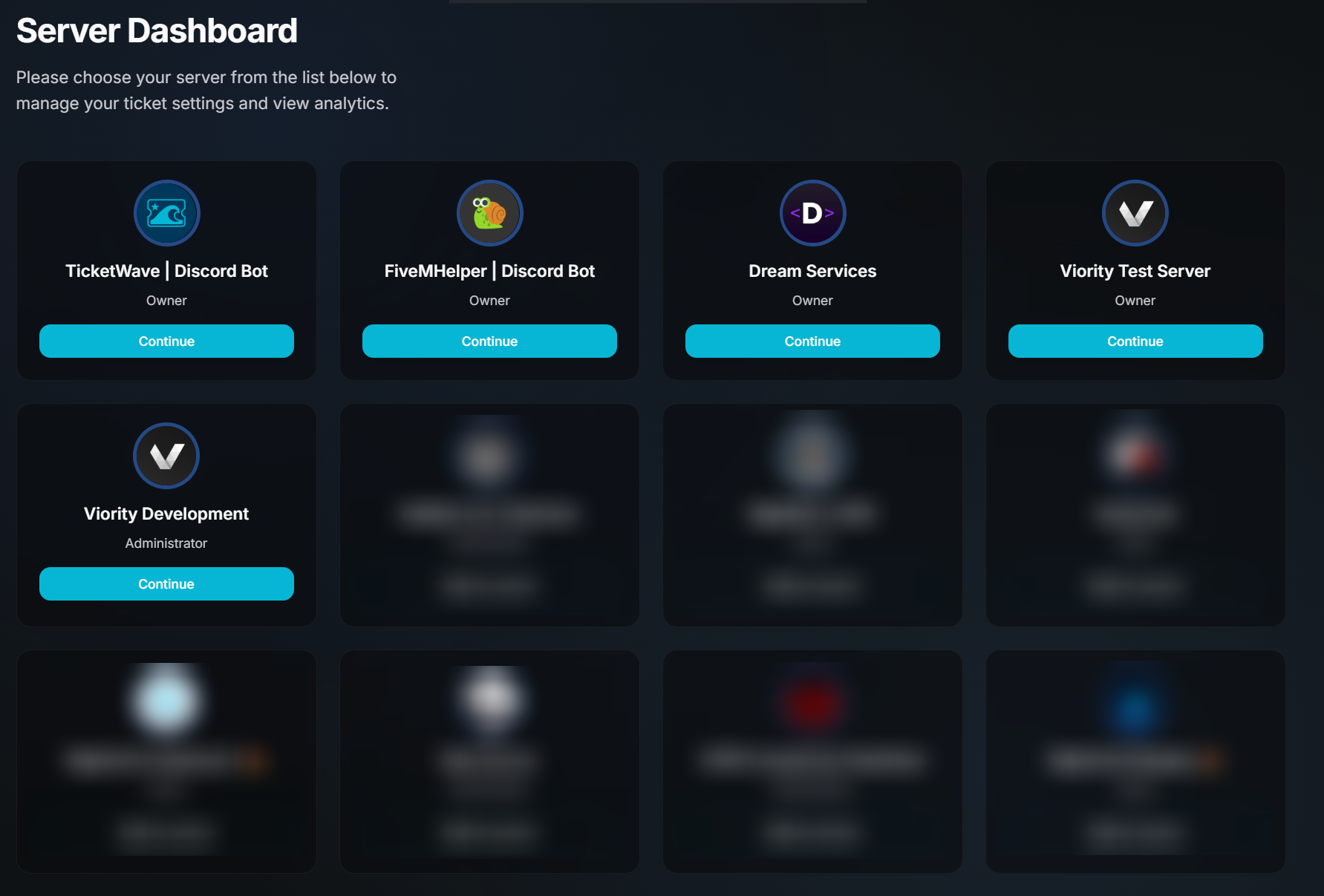
Some server cards are blurred in the screenshot because they contain private server information. In the actual dashboard, you will be able to see all server cards clearly.
See the Server Card
Each server is represented by a own card that shows the server name, server icon, permission status and a dynamic button.
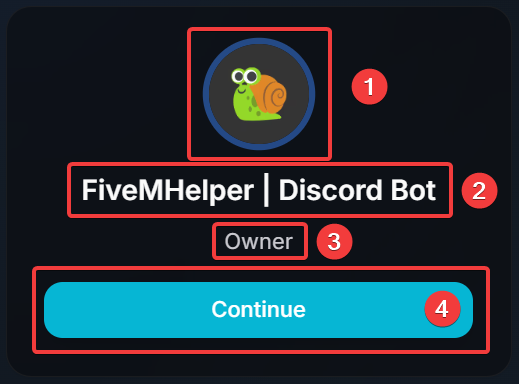
- The server icon
- The server name
- The permission status. There are the following possibles statuses:
| Status | Description |
|---|---|
Owner | You are the owner of the server and have always full permissions. |
Administrator | You are allowed to manage the server and have enough permissions to add TicketWave to this server. |
- The action button is dynamic and changes based on the status of the current TicketWave membership in the server. There are the following possible states:
| State | Description |
|---|---|
 | TicketWave is already added to this server. You can click this button to open the server specific dashboard. |
 | TicketWave is not added to this server. You can click this button to add TicketWave to this server. |
To add TicketWave to your server and use a bare minimum of features you also could follow our Quick Start Guide.
How is this guide?